
🔍 Contents
- Linking deviations later
- All deviations of a process card at a glance
- Romanian as a new language
- Security
- Bug Fixes
🔗 Linking deviations later
Until now, it had to be clear right when a deviation was created what it was attached to. A deviation recorded on the home page or in the deviation list could not be assigned to a KPI, task, or process card afterwards and remained assigned to the team only.
With version 26.2.1 there is a new Source section below the description field. There you can set or change the link at any time – when creating the deviation as well as when editing it.
📸 Screenshot: The new "Source" section with the three selection fields below the description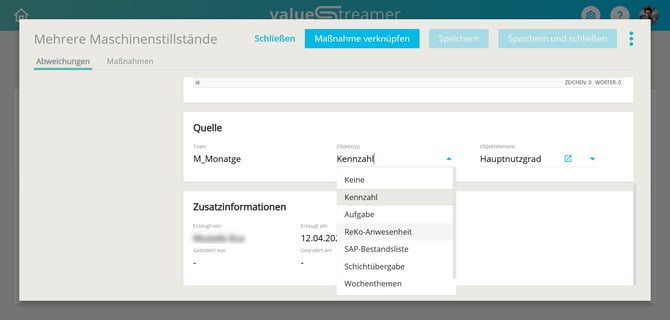
Functions at a glance:
- Three selection fields next to each other: Team, Object type, and Object element.
- Team: Shows the team abbreviation and cannot be changed.
- Object type: The options are None, KPI, the team's lists, Task, and the team's process boards.
ℹ️ Note: As soon as an object type is selected, the object element becomes a mandatory field. The deviation can only be saved once an element has been selected as well. With None, the second field stays inactive and the deviation is assigned to the team only. - Object element: Shows all matching elements of the selected team.
ℹ️ Note: A list entry can only carry one deviation. Entries that already have a deviation therefore do not appear in the selection. - Pre-filling: The fields are already filled depending on where the deviation was created. If you create a deviation from a KPI, for example, the object type KPI and the KPI title are already set.
ℹ️ Note: Deviations from the CORE KPI Occupational Safety are permanently linked to this KPI. Both fields cannot be changed there. The same applies if the object element belongs to a different team than the deviation itself. - Jump link: Next to the object element there is a jump link. Clicking it takes you directly to the linked element.
⚠️ Attention: Clicking the jump link closes the deviation. Unsaved changes are lost. Save your changes first. - Merging deviations: The Source section also appears when merging several deviations. Object type and object element are empty there at first and can be set freely.
What this changes:
If you reassign a deviation later, for example from a list to a KPI, it now also appears in the deviation management of that KPI. The same applies to list entries, process elements, and tasks.
⚠️ Attention: The previous Source field under the additional information is discontinued, as the information is now located in the new section. For linked actions and A3 reports, the corresponding field will in future be called Source team.
✨ Tip: Check the deviations that are so far assigned to the team only and link them to the matching object. This way they appear in the deviation management of the respective KPI or task and can be evaluated there.
👉 More on this topic can be found in the article: ⚠️ Creating and Editing Deviations
🗂️ All deviations of a process card at a glance
If you steer a project via a process board, until now you only saw deviations where they were recorded: on the individual task or on the individual sub-process. There was no overall view of the entire operation.
With version 26.2.1, the Deviations and Actions lists of a process card carry the new Include all levels toggle in their header area.
📸 Screenshot: Process card with the "Include all levels" toggle and the new "Team" column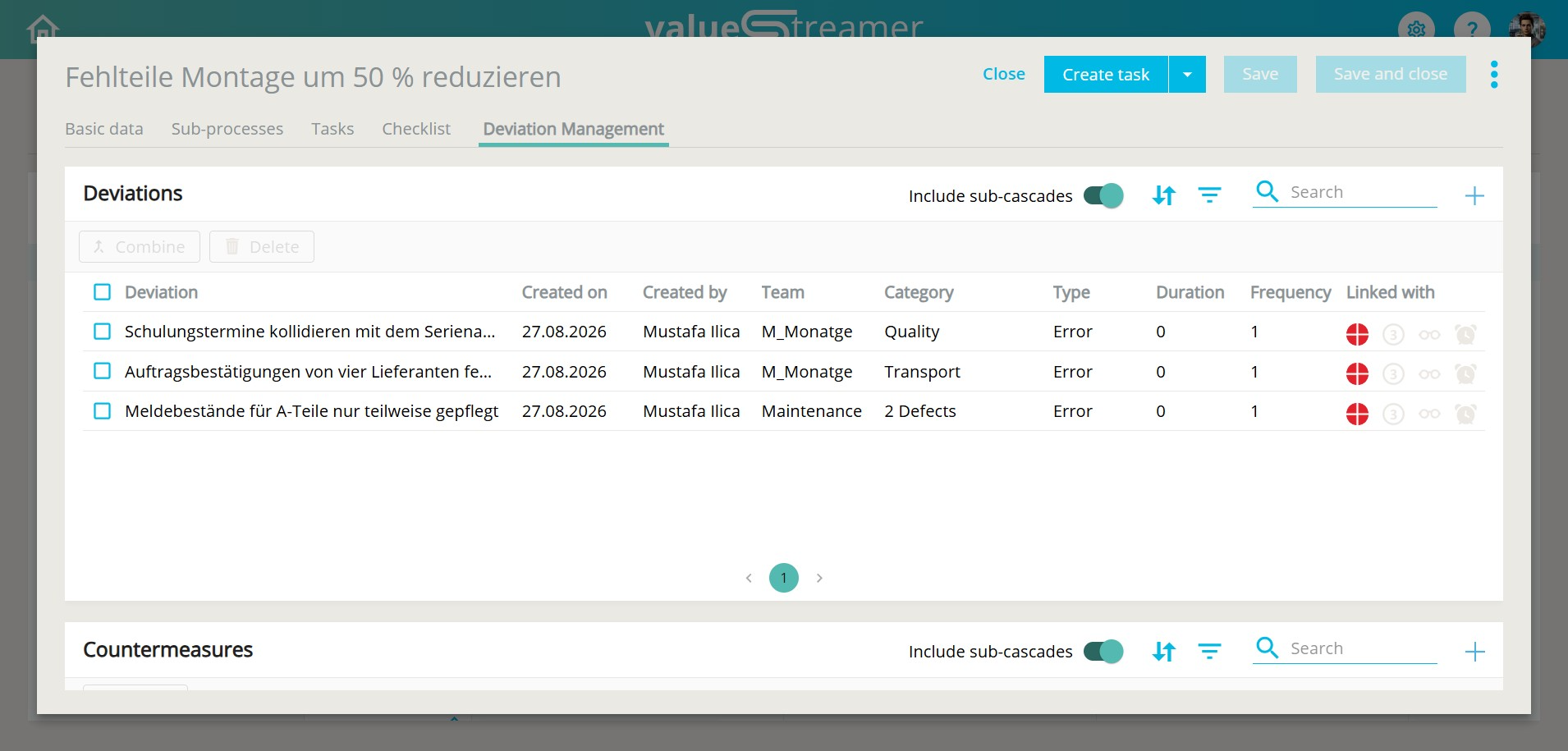
Functions at a glance:
- "Include all levels" toggle: Additionally displays all deviations and actions attached to linked sub-processes or tasks. The entire process cascade is taken into account, including sub-processes of sub-processes. ℹ️ Note: If there are no deviations in the linked sub-processes and tasks, the toggle is inactive. A tooltip explains the reason.
- Combination with the quick filter: The toggle works together with the existing quick filter. Example: all deviations from all levels with the status Active.
- New "Team" column: To the right of Created by you can see which team a deviation originates from. The list can additionally be sorted by team. ℹ️ Note: Nothing changes about the role and permission concept. Deviations from teams in which you are not a member are displayed in read-only mode.
✨ Tip: At the end of a project, the toggle provides the complete overview of all deviations that occurred in the course of it. This saves you from collecting them from the individual tasks and is a good basis for lessons learned.
🌍 New language
As of version 26.2.1, ValueStreamer is additionally available in Romanian. You can switch the language as usual in your user settings.
ℹ️ Note: For users to be able to select a language, it must be activated in the tenant. This is done by the system administrator.
👉 More on this topic can be found in the article: 🌐 Managing and Activating Languages
🛡️ Security
The security settings of the system have been hardened further, among other things by a stricter referrer policy. This results in no changes for use.
🐞 Bug Fixes
Various minor bug fixes and stability improvements.