
🔍 Contents
- Overview: SAML vs. OAuth/OIDC vs. SCIM
- Requirements & Terminology
- How the Onboarding Process Works (Process Overview)
- Setting up SSO with SAML
- Setting up SSO with OAuth/OIDC
- Configuring SCIM (User Provisioning)
- Common Sources of Error
- Tips & Best Practices
- FAQ
ℹ️ Note: The introduction of SSO and SCIM is always coordinated with ValueStreamer Support. Certain steps (e.g. creation of the test tenant, provision of the SCIM secret token, switchover of the production system) are carried out exclusively by ValueStreamer.
👉 Help Desk Portal – Create a ticket
📧 Alternatively: support@valuestreamer.de
Overview: SAML vs. OAuth/OIDC vs. SCIM
| Technology | Purpose | Advantage / Use Case |
|---|---|---|
| SAML | Authentication (login) | Enterprise standard, broad IdP support |
| OAuth/OIDC | Authentication (login) | Modern standard, suitable for Microsoft Entra ID and Auth0 |
| SCIM | User provisioning | Automatic creation, update, and deactivation of users from your IdP |
ℹ️ Note: OAuth is used in combination with OIDC to pass user information (name, email address) to ValueStreamer.
⚠️ Important: SCIM requires a working SSO setup (SAML or OAuth/OIDC). The rollout therefore always follows this order: SSO first, then SCIM.
Requirements & Terminology
- IdP: Identity Provider – your identity service (e.g. Microsoft Entra ID, Auth0)
- SP: Service Provider – here: ValueStreamer
- Entity ID: Unique identifier of a system
- ACS URL / Reply URL (SAML): Destination address for SAML responses
- Redirect URI (OIDC): Return address after a successful login
- Tenant URL (SCIM): API endpoint for user synchronization
- Test tenant: A separate test instance of your ValueStreamer system at
https://<tenant>-test.valuestreamer.de
✨ Tip: Before the project starts, designate a contact person in your IT department who has access to your identity provider. This speeds up the setup considerably.
✨ Tip: Document all relevant URLs, IDs, and attributes centrally in your project.
🛠️ How the Onboarding Process Works (Process Overview)
The introduction of SSO and SCIM takes place in four phases. This ensures that your production system is only switched over once everything has been verified to work.
Phase 1: Coordination
- Report your requirements to ValueStreamer Support or your contact person at ValueStreamer.
- Together we clarify:
- SSO method: SAML or OAuth/OIDC?
- Identity provider: Microsoft Entra ID, Auth0, or another IdP?
- SCIM: Should automated user provisioning be used?
- Contact person: Who is the responsible contact in your IT department?
ℹ️ Note: All communication and the exchange of all configuration data take place via the support ticket. This way, all information is documented and traceable for both sides.
Phase 2: Test Phase with Test Tenant
- ValueStreamer creates a test tenant at
https://<tenant>-test.valuestreamer.de. It is connected to a copy of your production database. - You receive the appropriate setup documentation and all required URLs for the test tenant.
- You set up the test app in your IdP and provide us with the required data via the support ticket (see the SAML and OAuth/OIDC sections).
- ValueStreamer activates SSO on the test tenant and informs you via the support ticket.
✨ Tip: You can create the test app in your IdP even before the test tenant has been created – the URLs follow a fixed scheme (see below).
Phase 3: Testing on Your Side
- Test the login on the test tenant with an existing user (e.g. your key user).
- Verify that the login works reliably and that the user data is transferred correctly.
- Report the test result via the support ticket.
⚠️ Important: The production system is only switched over after a successful test on the test tenant.
Phase 4: Go-Live
- You create the production app in your IdP (same procedure as in the test phase, but with the production URLs without
-test). - You provide us with the data of the production app via the support ticket.
- Together we schedule 1–2 appointments for the switchover of the production tenant.
- At the agreed time, ValueStreamer switches your production tenant to SSO. The switchover can also be accompanied by a remote session.
⚠️ Important: During the switchover, certain functions (e.g. login, creation of users) are temporarily restricted. Therefore, schedule the appointment outside of critical usage times.
🛠️ Setting up SSO with SAML
Responsibilities: Who Provides What?
🔹 Provided by ValueStreamer:
| Parameter | Test Phase | Production |
|---|---|---|
| SP Entity ID | https://<tenant>-test.valuestreamer.de |
https://<tenant>.valuestreamer.de |
| Reply URL (ACS URL) | https://api-<tenant>-test.valuestreamer.de/saml/SSO |
https://api-<tenant>.valuestreamer.de/saml/SSO |
Enter these values in the SAML configuration of your IdP. The reply URL serves as the destination for redirecting the SAML response after a successful login.
⚠️ Important: The URLs must be copied exactly – pay close attention to the exact spelling.
🔸 Provided by you:
- Metadata URL of your identity provider
- Name in Microsoft Entra ID: App federation metadata URL
- Format:
https://login.microsoftonline.com/<tenant-id>/federationmetadata/2007-06/federationmetadata.xml
📸 Screenshot: SAML configuration in Microsoft Entra ID – Green = provided by ValueStreamer, Yellow = provided by you-png.png?width=670&height=617&name=grafik-20240126-085302%20(2)-png.png)
Configuration by ValueStreamer
After receiving your metadata URL, ValueStreamer takes care of:
- Importing the metadata
- Mapping the attributes:
NameIDuser.mailuser.givennameuser.surname
- Approval for the login test
✨ Tip: Test with a user that already exists in ValueStreamer before switching over additional users.
🛠️ Setting up SSO with OAuth/OIDC
🗂️ Option A: Microsoft Entra ID
📌 Data you provide to ValueStreamer:
- Authentication URL:
https://login.microsoftonline.com/<tenant-id> - Application (Client) ID: Generated during app registration (format:
xxxxxxxx-xxxx-xxxx-xxxx-xxxxxxxxxxxx)
🛠️ Step-by-Step Guide:
- Register the application In Microsoft Entra ID, navigate to App registrations and click New registration.
📸 Screenshot: Entra ID portal – opening App Registration ("New registration")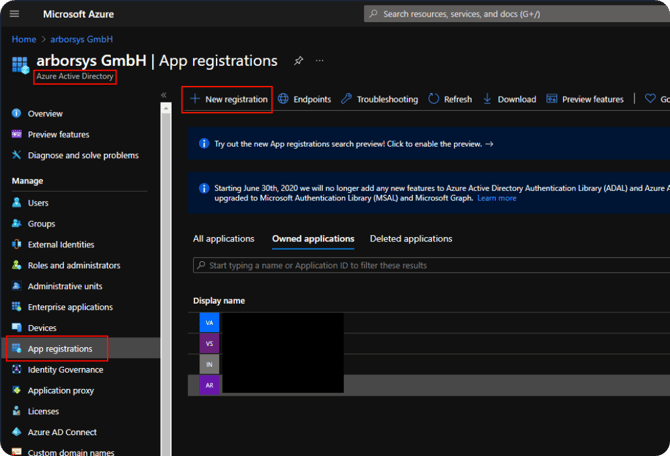
- Configure the redirect URI Go to Authentication in the menu and enter the redirect URI under Single-page application:
- Test phase:
https://<tenant>-test.valuestreamer.de/ - Production:
https://<tenant>.valuestreamer.de/⚠️ Important: The redirect URI must match exactly – including the trailing slash.
📸 Screenshot: Configuring the redirect URI in the "Authentication" section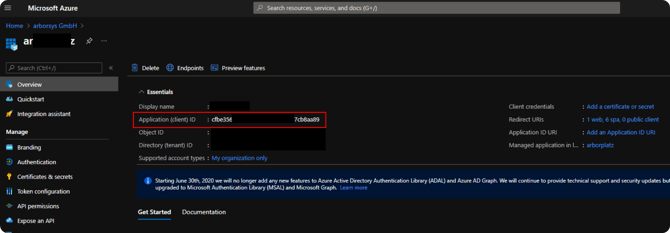
- Test phase:
- Copy the client ID After registration, you will find the Application (client) ID in the app details.
📸 Screenshot: Overview showing the Application (Client) ID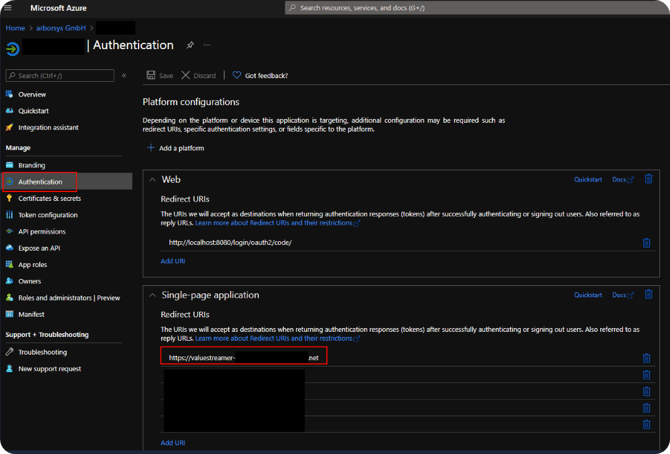
- Define the scopes
openid,profile,email - Submit the data to ValueStreamer Provide the authentication URL and client ID via the support ticket. ValueStreamer handles the configuration on the system side and confirms activation.
🗂️ Option B: Auth0
📌 Data you provide to ValueStreamer:
- Auth0 Domain: e.g.
mycompany.auth0.com - Client ID: Generated during app registration
Configure in Auth0:
- Allowed Callback URLs:
- Test phase:
https://<tenant>-test.valuestreamer.de - Production:
https://<tenant>.valuestreamer.de
- Test phase:
- Allowed Logout URLs: Optional
- Allowed Web Origins: Optional
📸 Screenshot: Auth0 – input mask for callback URLs
🛠️ Configuring SCIM (User Provisioning)
⚠️ Important: A working SSO setup via SAML or OAuth/OIDC is a prerequisite for SCIM. The SCIM setup also starts on the test tenant first.
Process with ValueStreamer
- ValueStreamer activates SCIM on your test tenant.
- You receive the secret token via a secure, time-limited sharing link in the support ticket.
- You set up SCIM in your IdP (see the guide below) and test the connection as well as the user synchronization.
- After a successful test, we schedule the go-live date. You will receive a new secret token for the production system, and ValueStreamer activates SCIM on the production tenant at the agreed time.
ℹ️ Note: Secret tokens are shared exclusively via secure sharing links in the support ticket – never by email.
1. Prepare the Enterprise Application (Microsoft Entra ID)
An enterprise application for ValueStreamer usually already exists, since SSO has been set up beforehand.
✨ Tip: If no app exists yet, create a new application under Microsoft Entra ID → Enterprise Applications ("Create your own application", option "Non-gallery").
📸 Screenshot: Create your own application – enter a name and select "Non-gallery"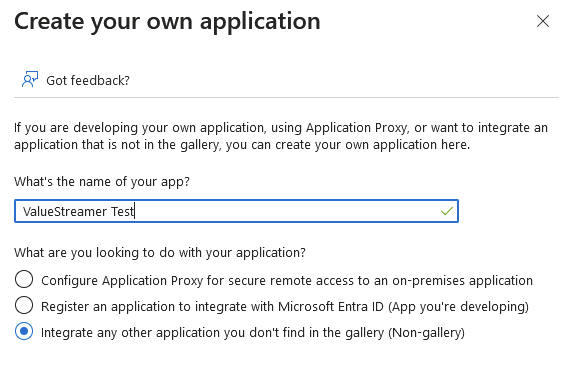
2. Activate Automatic Provisioning
Open the enterprise application → Provisioning → mode: Automatic.
📸 Screenshot: Setting the provisioning mode to "Automatic" and filling in the fields
Enter the following:
| Field | Test Phase | Production |
|---|---|---|
| Tenant URL | https://api-<tenant>-test.valuestreamer.de/scim/v2/ |
https://api-<tenant>.valuestreamer.de/scim/v2/ |
| Secret Token | Provided by ValueStreamer via the support ticket | Provided by ValueStreamer via the support ticket |
Then click Test connection.
📸 Screenshot: Successful test connection (green status message)
3. Map User Attributes
Open Edit Attribute Mappings → Provision Azure Active Directory Users.
📸 Screenshot: Opening the attribute mapping overview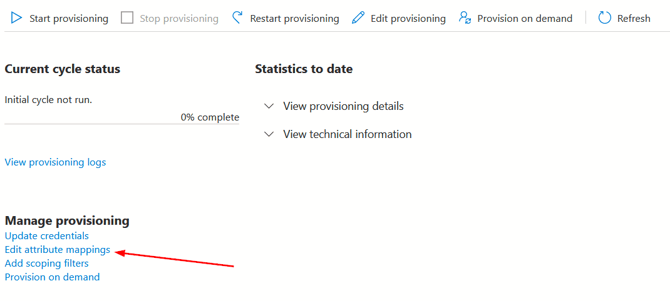
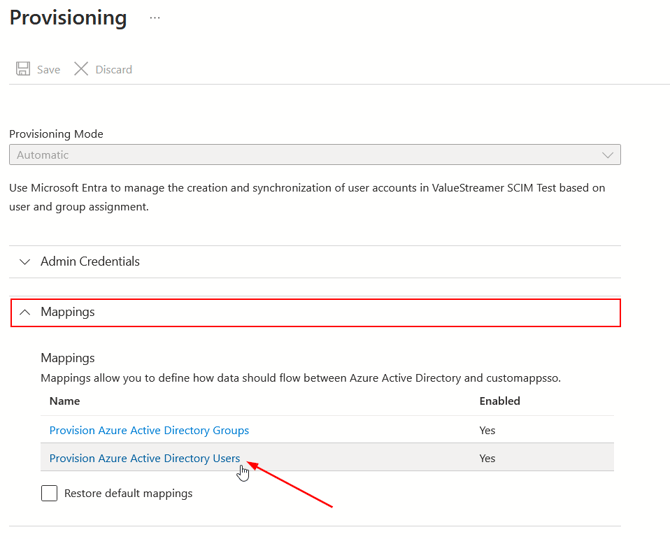
📸 Screenshot: Mapping externalId → objectId and other relevant attributes-png.png?width=670&height=483&name=grafik-20240523-124434%20(1)-png.png)
| Target Attribute (ValueStreamer) | Source Attribute (Entra ID) |
|---|---|
externalId |
objectId |
mail |
mail |
givenName |
givenName |
surname |
surname |
⚠️ Important: Use only the attributes listed above. Additional, unsupported attributes will cause synchronization errors.
ℹ️ Note: The email address in the IdP (type: "work") must match the email address/username in ValueStreamer. This is how existing users are uniquely identified.
4. Disable Group Mapping
Open Edit Attribute Mappings → Provision Azure Active Directory Groups.
📸 Screenshot: Opening the group mapping-png.png?width=670&height=302&name=grafik-20240116-123509%20(1)-png.png)
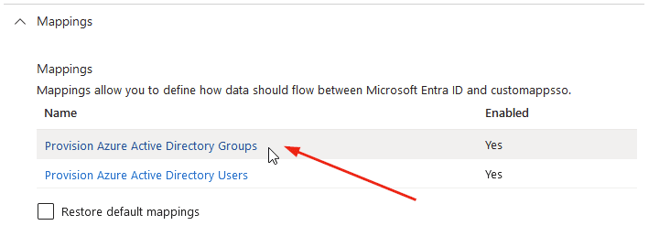
Uncheck the checkboxes for Create, Update, and Delete, and save the settings.
📸 Screenshot: Unchecking the checkboxes and saving
⚠️ Important: ValueStreamer does not support group provisioning. Active group mapping will cause synchronization errors.
Common Sources of Error
⚠️ Important – these issues cause most support requests:
- Missing attributes (e.g.
externalIdnot mapped toobjectId) - Additional, unsupported attributes in the mapping
- Inaccurate redirect, reply, or ACS URLs (typos, missing trailing slash,
-testforgotten or incorrectly carried over) - Expired or incorrectly transferred secret tokens
- Email address in the IdP does not match the username in ValueStreamer
⚠️ Limitation: Microsoft Entra ID does not support nested groups for provisioning and SSO – only directly assigned users are synchronized.
📸 Screenshot: Note on nested groups (Microsoft Entra documentation)
✨ Tip: Make sure the system clocks of the IdP and the systems involved are synchronized.
✨ Tips & Best Practices
- Create the test app early: Since all URLs follow a fixed scheme, you can configure the app in your IdP even before the test tenant has been created.
- Separate apps for test and production: Create a dedicated app in your IdP for the test phase and for production. This keeps the test environment usable even after go-live.
- Color-coded documentation: In your internal documentation, mark which values come from ValueStreamer (green) and which come from you (yellow) – this avoids misunderstandings about responsibilities.
- Key user first: Always test login and provisioning with a single, already existing user before assigning additional users.
- Everything via the support ticket: Submit configuration data exclusively via the support ticket. This keeps all information documented and traceable for both sides.
❓ FAQ
How does OAuth differ from OIDC?
OIDC is an identity layer based on OAuth that transmits login information such as email address and name to ValueStreamer.
Why is a test tenant set up first?
Switching to SSO affects the login of all users. The test tenant allows the configuration to be fully verified before the production system is switched over – without any risk to ongoing operations.
Can I configure multiple SSO methods in parallel?
Yes, e.g. SAML for internal users and OAuth/OIDC for external applications. Discuss your desired scenario with ValueStreamer Support.
Are groups synchronized via SCIM?
No. ValueStreamer does not support group provisioning – group mapping must be disabled in your IdP.
What happens when a user is deleted in the IdP?
With SCIM active, the user is also removed or deactivated in ValueStreamer.
How often does Microsoft Entra ID synchronize?
The standard interval is approximately 40 minutes.
How do I receive the SCIM secret token?
The token is provided by ValueStreamer via a secure, time-limited sharing link in the support ticket – separately for the test and production tenant.
🔹 Need Help?
ℹ️ Note: Creating the test tenant, activating SSO/SCIM, and providing the secret token require coordination with ValueStreamer Support:
👉 Help Desk Portal – Create a ticket
📧 Alternatively: support@valuestreamer.de