
🔍 Contents:
📊 Visualization of Data Freshness on KPI Tiles
Version 25.3 introduces visual indicators for the freshness and completeness of KPI values. Teams can immediately see whether all data for the relevant period is maintained — crucial for informed shopfloor decisions.
👉 Learn more in the article: 🟡 Visual Indication of Outdated KPI Values
📸 Screenshot: KPI tile marked yellow for outdated values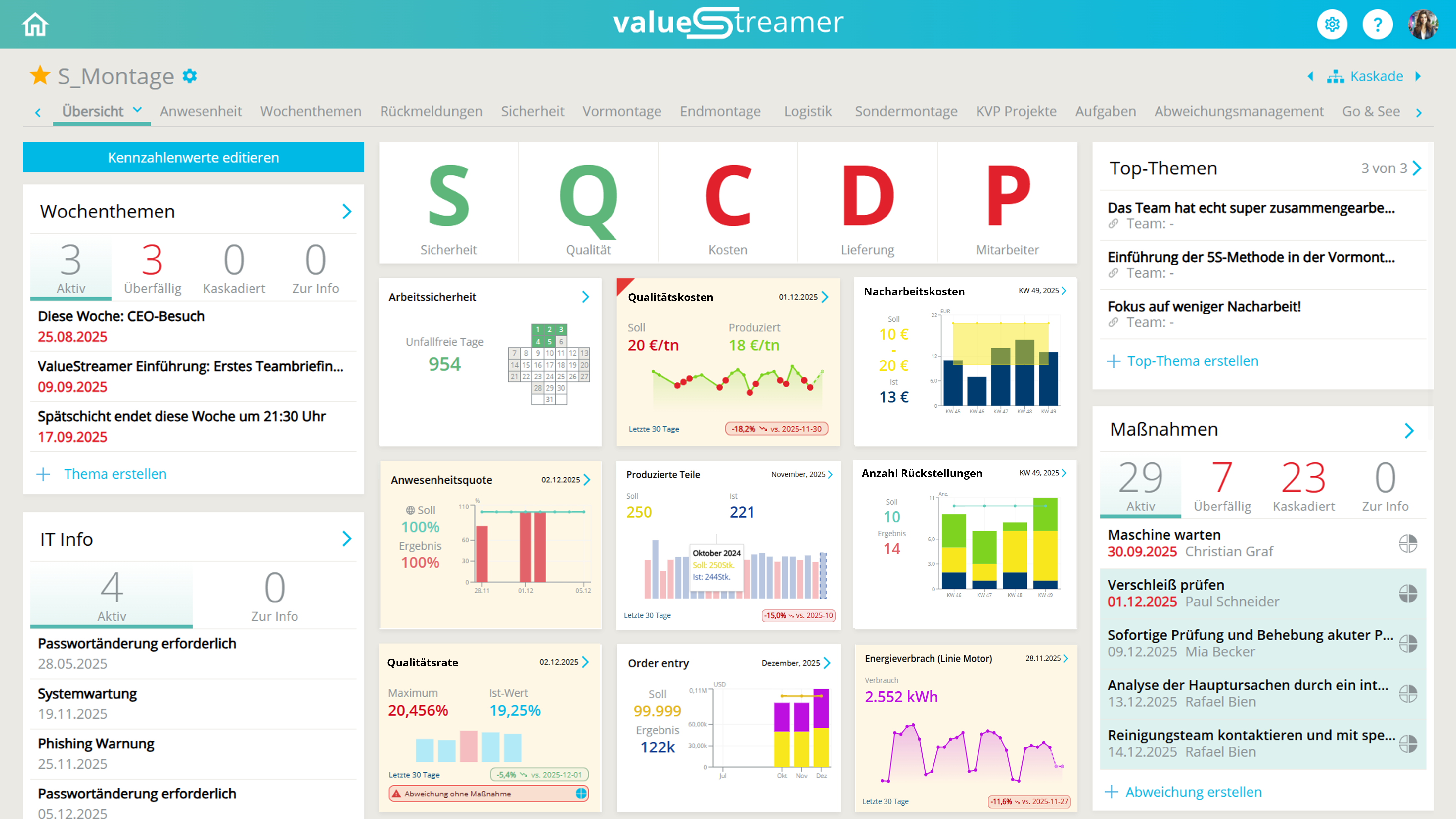
Feature highlights:
-
Yellow marking on KPI tile when values are outdated or incomplete
-
Automatic check based on:
-
Recording interval (day / week / month)
-
Data point: current value or last value
-
-
Evaluation logic:
-
Current value → must be from today, this week, or this month
-
Last value → must be from yesterday, last week, or last month
-
-
Only confirmed forecast actuals or regular actuals are valid
⚠️ Unconfirmed forecast values are treated as "not available"
-
Team timezone is respected
✨ Tip: Especially useful for managers to instantly see if all data is up to date across all levels — without manual follow-up.
🎯 Focus Mode for Overview Tiles
The new focus mode enables a simplified yet impactful display of individual KPI tiles in shopfloor management view.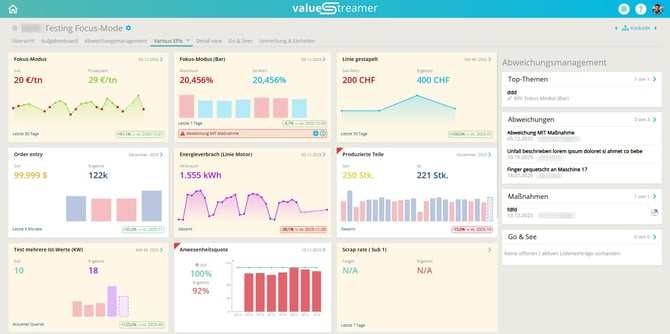
👉 Learn more in the article: 🌍 Focus Mode for Overview Tiles
📸 Screenshot: KPI Editor – Activate Focus Mode in Step 3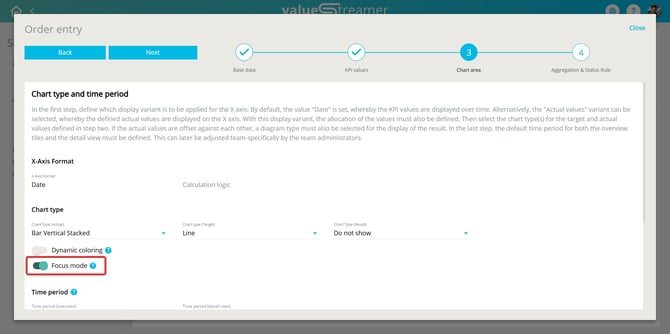
Feature highlights:
-
Activatable in KPI Editor (Step 3)
-
Configurable per team and template
-
Two variants: bar or area chart (depending on KPI type)
-
Reduced chart, emphasized KPI values
-
Automatic display of trend indicator
📸 Screenshot: KPI tiles in focus mode with trend indicator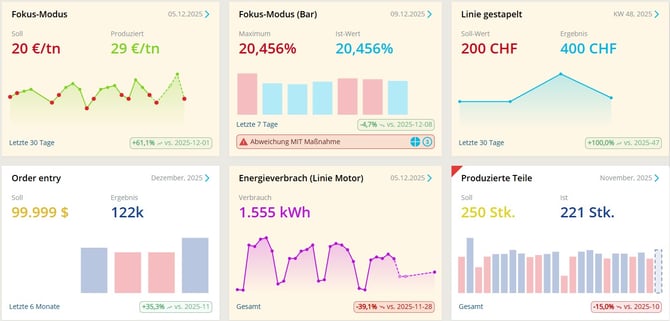
✨ Tip: Ideal for KPIs with strong management focus or for daily shopfloor meetings. The detail view remains unchanged.
ℹ️ Note: This setting only affects the display on the overview tile, not the data or aggregations.
⏱️ New Standard Unit "Time" in KPI Editor
In the KPI Editor (Step 2), a new standard unit called “Time” is now available. Values can be entered conveniently using a time picker in the hh:mm format.
📸 Screenshot: Example KPIs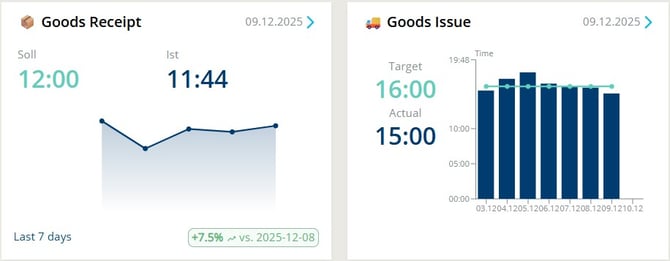
👉 Learn more about this topic in the following articles:
📸 Screenshot: Dropdown menu “Unit” with entry “Time”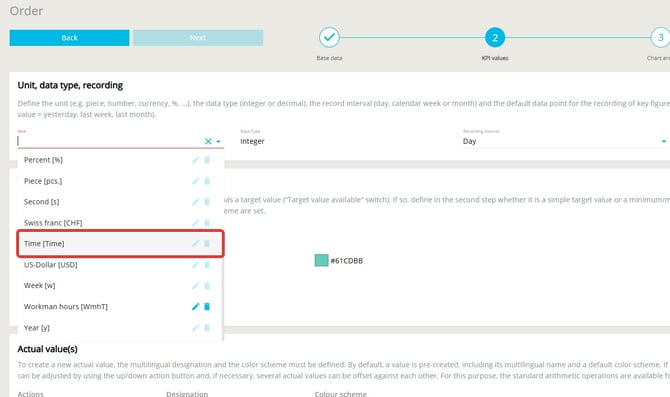
Feature Overview:
-
The “Time” unit can be selected when exactly one actual value is defined
-
Aggregation logic is not permitted when “Time” is selected
-
Automatic scaling of the Y-axis
-
Uniform display in hh:mm (24-hour format)
-
Tooltips and axis labels respect the selected unit
⚠️ Warning: The “Time” unit is system-defined and cannot be edited or deleted.
ℹ️ Note: If you attempt to define multiple actual values or use aggregation, the “Time” option will be disabled automatically.
✨ Tip: Ideal for cycle times, process times, or similar time-based KPIs.
✨ Tip: Entering values with the “Time” unit (Editor & API)
For KPIs using the “Time” unit, enter values as minutes since 00:00. This applies to both manual input in the editor and automated data transfer via the REST API.
Examples:
-
2:43 PM (14:43) → 14 × 60 + 43 = 883
-
8:00 AM → 8 × 60 = 480
For more details on the API integration, refer to the article:
🌐 Manage KPIs via REST API
➕ Create and Manage Custom Units in the KPI Editor
In addition to predefined units, you can now add, edit and delete custom units directly in the KPI Editor — tenant-specific and multilingual.
👉 Learn more in the article: 🧩 Create, Edit and Delete KPI Templates
📸 Screenshot: "Unit" dropdown with search function and option to "Add Term"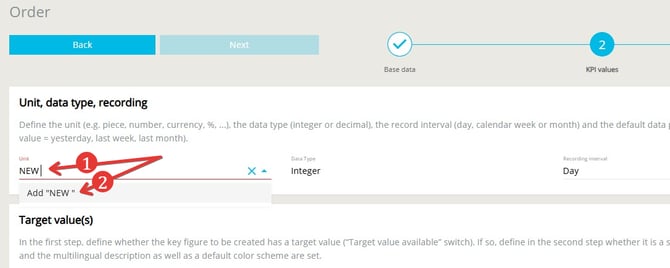
Feature highlights:
-
Create new unit directly in dropdown (incl. abbreviation, max. 5 characters)
-
Abbreviations must be unique (backend validation upon creation)
-
Edit existing units (except standard units)
-
Delete units if not in use
📸 Screenshot: Modal window "Create New Unit"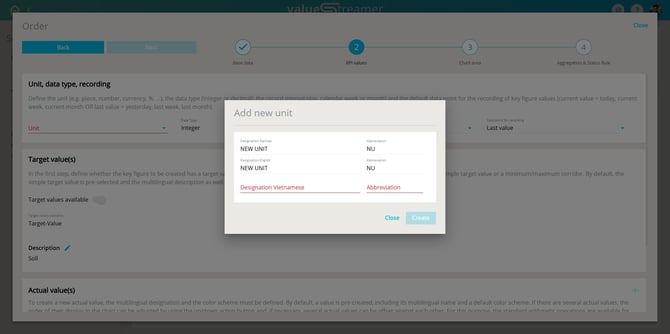
⚠️ Warning: Units currently in use cannot be deleted. A dialog informs you and lists affected KPIs.
✨ Tip: Use this function to standardize your own metrics such as energy consumption (e.g., "kWh"), quantity (e.g., "pcs") or specific process values.
🐞 Bug Fixes
As always, minor technical inconsistencies were resolved, and system stability was further improved with this release.
✨ Tip: Each version subtly enhances the user experience — often unnoticed, but impactful in daily use.