
🔍 Contents
- Why is this topic important?
- Prerequisites
- Step-by-step: Performing a KPI export
- Tips & Best Practices
- FAQ
📌 Why is this topic important?
Many companies need KPI data not only within ValueStreamer, but also in external tools (e.g. Excel, BI systems, quarterly reports). The CSV export ensures that this data is available.
✅ Prerequisites
- Available to all team members by default
- Export rights can be restricted via the "Master and Transaction Data" add-on
🛠️ Step-by-step: Performing a KPI export
1️⃣ Open the desired KPI in the detail view.
2️⃣ Click the Export button (top right in the toolbar).
📸 Screenshot: Export button in KPI detail view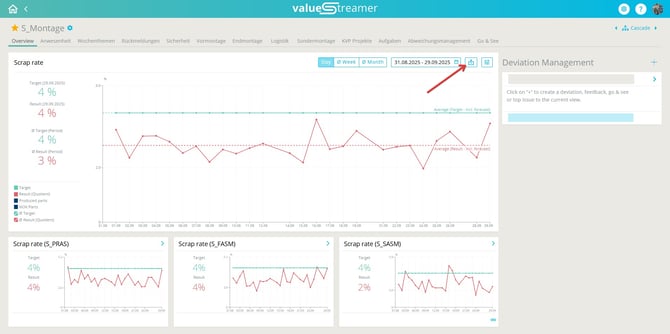
3️⃣ In the export dialog, select:
-
Time period (e.g., 01/01–03/31)
-
Granularity (Day / Week / Month)
-
Option: Export linked deviations/actions
📸 Screenshot: Export dialog with option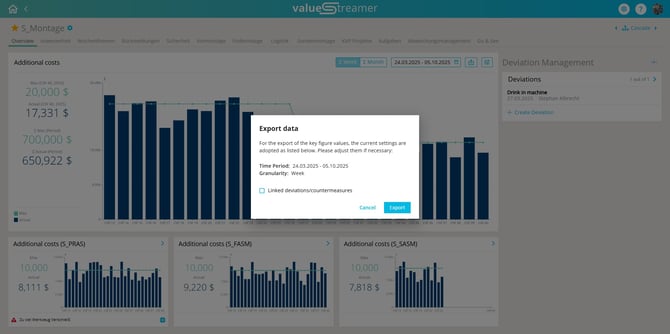
4️⃣ Click “Export”.
The data will be downloaded as a CSV file and can be used immediately for further processing.
📈 Forecast values in the export
If forecast actual values are recorded for a KPI, these have been additionally included in the CSV export since version 26.2.
- Forecast actual values and forecast results are output as separate columns in the export file.
- The column labels appear in the selected language.
ℹ️ Note: If no forecast values are recorded for a KPI, the corresponding columns are omitted from the export.
✨ Tips & Best Practices
- Use the export for quarterly and annual reports without manual copying.
- Use the "with deviations/measures" option to link evaluations with causes and countermeasures.
- For forecast evaluations, check the export language so that the column labels match your reporting.
❓ FAQ
Who is allowed to export KPI values? → By default, all team members. If the "Master and Transaction Data" add-on is active, its configuration determines which roles are allowed to export.
Which data is exported? → The data visible in the chart: time period, granularity, actual/target values, any linked deviations/measures, and – if available – forecast actual values and forecast results.
Are forecast values always exported? → Only if forecast actual values are recorded for the KPI. Otherwise, the forecast columns are omitted.
In which format is the export delivered? → CSV file, compatible with Excel, BI tools, and databases.
In which language do the column labels appear? → In the selected language.