
🔍 Contents
-
What Are T‑Card Tasks?
-
Selecting and Creating the Task Type
-
Scheduling T‑Card Tasks (Recurrence Pattern)
-
Display and Status in the Task Board
-
Confirming and Rescheduling T‑Cards
-
Overdue Column and Rescheduling
-
T‑Cards in Other Views and Modules
-
Tips & Best Practices
-
FAQ
▶️ What Are T‑Card Tasks?
There are two task types in the task board:
-
Regular tasks (as before)
-
T‑Card tasks for recurring process confirmations
T‑Cards follow a fixed red/green logic:
-
🔴 Red = scheduled but not completed
-
🟢 Green = completed / confirmed
After confirmation, the T‑Card is automatically rescheduled.
📸 Screenshot: Task board with regular tasks and T‑Cards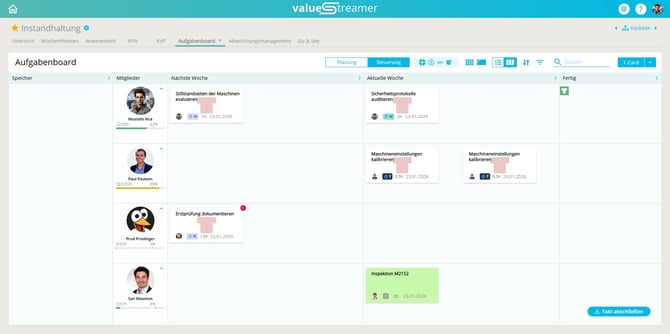
➕ Select Task Type When Creating
When adding a new task, a split button is available:
-
Click the T‑Card button (arrow next to it).
-
Choose between Regular Task or T‑Card Task.
✨ Tip: The default task type can be defined in the task board settings.
📸 Screenshot: Split button for selecting task type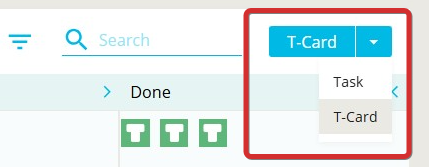
📝 Create a T‑Card Task
When creating a T‑Card, the following fields are available:
-
Task title
-
Team and responsible person
-
Start (Planned End) – first scheduled due date
-
Recurrence pattern:
-
daily
-
weekly
-
monthly
-
optional: takt length (e.g., incl. / excl. weekends)
-
-
Description (rich-text editor with text, bullets, images)
At the end, choose:
-
Create
-
Create another T‑Card
-
Cancel
📸 Screenshot: “Create T‑Card” modal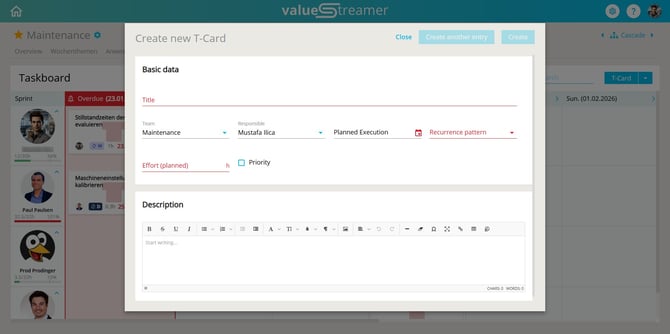
ℹ️ Note: T‑Card tasks cannot use additional statuses — they are either “Open” or “Done”.
📅 Display and Status in the Planning View
T‑Cards appear directly in the column for their planned date (Planned End). They are visually distinct from regular tasks.
📸 Screenshot: T‑Card tasks with icon in task board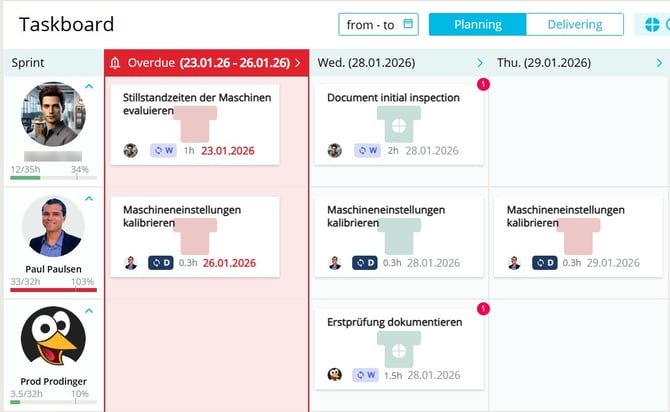
Identifiers:
-
T icon on the card body = identifies the T‑Card task type
-
Status indicators:
| Status | Meaning | Display |
|---|---|---|
| 🔴 Open | Scheduled but not completed | Red “T” icon on card |
| ✅ Done | T‑Card has been confirmed | Green “T” icon on card |
| 🟢 With deviation | Confirmed with deviation | Green card with PDCA icon |
📸 Screenshot: T‑Card with deviation (green + PDCA symbol)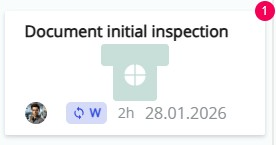
ℹ️ Note: The PDCA icon indicates the task was done, but the standard was not fully met.
✨ Tip: Use visual cues to quickly see which process tasks are completed without deviation, with deviation, or not completed at all.
⚠️ Overdue Column for Late Tasks
Once a task’s planned end is in the past, the Overdue column is automatically shown.
-
Applies to both regular tasks and T‑Cards
-
Tasks can be rescheduled via drag & drop
📸 Screenshot: Overdue column with open tasks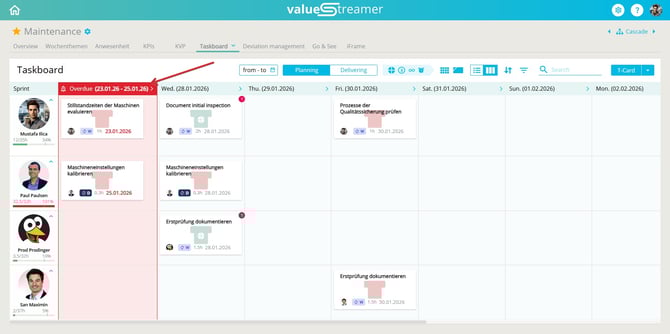
ℹ️ Note: The Overdue column disappears once all overdue tasks are rescheduled.
✅ Confirming Tasks and Rescheduling T‑Cards
Clicking a T‑Card in the planning view opens the confirmation dialog.
📸 Screenshot: “Confirm T‑Card” dialog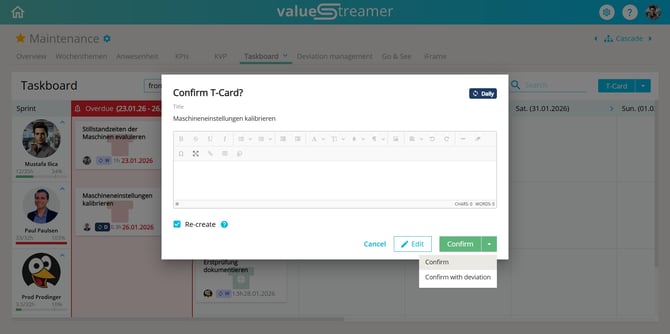
Available options:
-
✅ Confirm → Marks task as completed
-
🌀 Confirm with deviation → Marks as completed with PDCA icon
-
✏️ Edit → Modify task before confirming
-
🔁 Enable/disable recurrence → Schedule next T‑Card automatically
After confirming:
-
Task shows with green background (status: done)
-
A new T‑Card is scheduled based on the current planned end
-
If “Confirm with deviation” is selected, the card shows the PDCA symbol
✨ Tip: The PDCA icon helps leadership instantly recognize tasks completed with deviations.
📊 Use in Other Areas
T‑Cards are integrated throughout the system:
-
✔ Teamboard templates
-
✔ A3 module
-
✔ List views with T‑Card filter
-
✔ “My Dashboard” homepage
✨ Tip: Use filters to show only T‑Card tasks — ideal for leadership routines.
✨ Tips & Best Practices
-
Define T‑Cards for all recurring leadership routines (e.g., safety walks, shift checks).
-
Use clear task titles with purpose and area, e.g., “O&S Walk – Assembly Hall”
-
Use recurrence patterns instead of creating new daily tasks
-
Link T‑Cards to deviations to systematically document causes and actions
❓ FAQ
How do T‑Cards differ from regular tasks?
T‑Cards are for recurring tasks and are automatically rescheduled after each confirmation. Regular tasks are completed once.
Can I confirm T‑Cards in the Control View?
Yes — when you move a T‑Card to “Done” there, the confirmation dialog with recurrence options appears.
Why does the Overdue column sometimes appear?
It appears automatically when a task’s planned end is in the past. It disappears once all overdue tasks are rescheduled.