
🔍 Contents
- What does "recording along the cascade" mean?
- Prerequisites
- Activating the function & recording contributions
- Notes on how it works
- FAQ
📌 What does "recording along the cascade" mean?
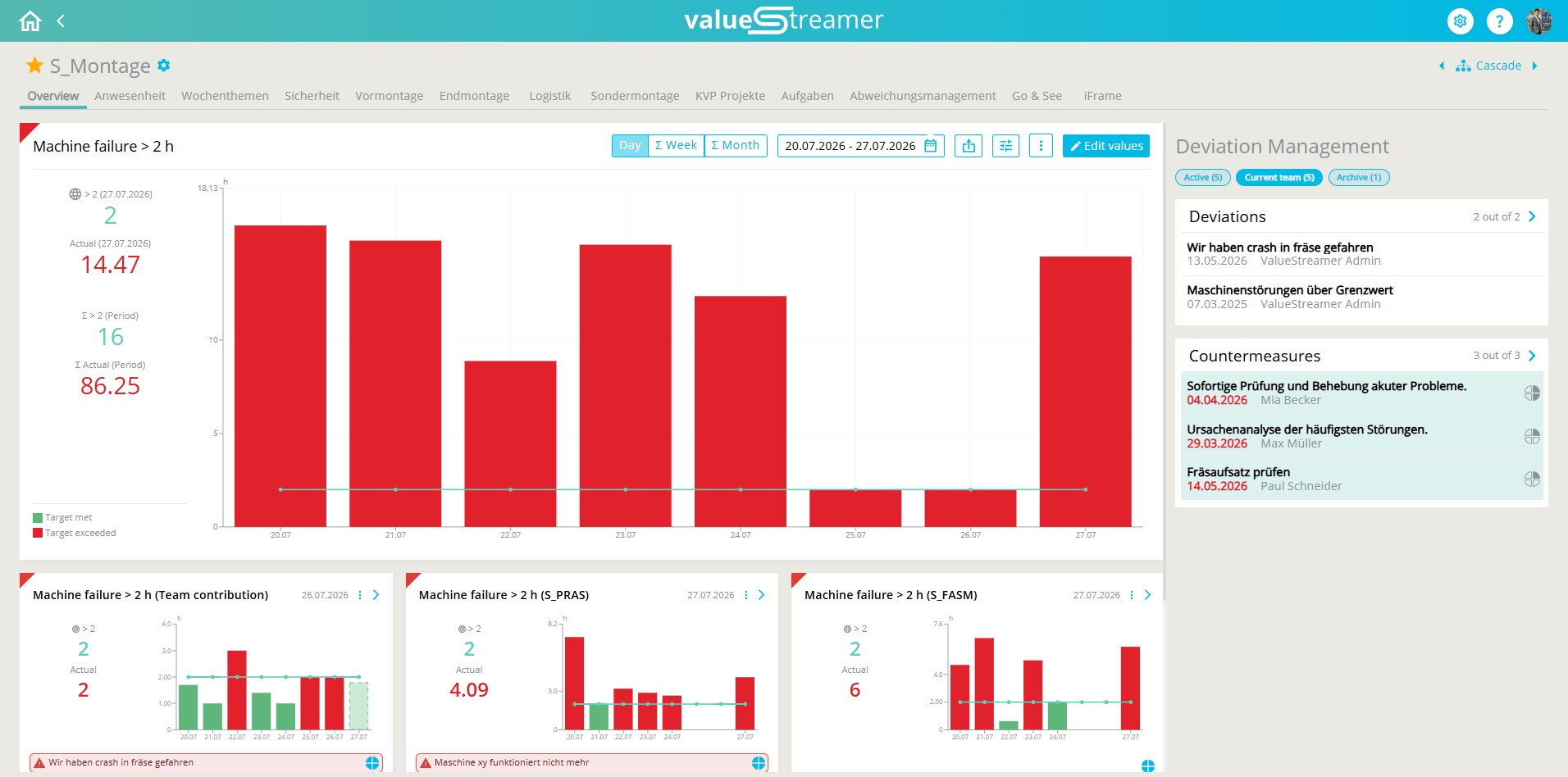
By default, KPI values are only recorded in leaf teams (lowest level) and automatically aggregated upwards. With recording along the cascade activated, all higher-level teams can additionally record their own "contribution".
📌 The contribution is taken into account twice:
- It flows into the aggregated value of the team's own level.
- The higher levels can include their "contribution" in the further aggregation. The values are calculated according to the defined aggregation logic (sum, average, quotient).
✨ Example (aggregation logic sum): Team 1 reports Actual = 5, Team 2 reports Actual = 2. The parent department records its own contribution of 2. The aggregated actual value of the department is 5 + 2 + 2 = 9.
✅ Prerequisites
- 🔑 System administrator rights for activation in the KPI editor
- ⚙️ The switch "Aggregation of key figures" is activated
- ⚙️ A value is selected as the aggregation logic (Actual) – except "Product" and "No aggregation"
- ⚙️ If a target value or corridor is defined: a suitable aggregation logic (Target) (except "Product" and "No aggregation") or a global target value
- 🧭 The KPI is available in the participating teams along the cascade
⚠️ Attention: If the prerequisites are not met, the switch is displayed greyed out. Hover over the inactive switch – a tooltip shows you the missing conditions.
🛠️ Activating the function & recording contributions
1️⃣ Activate the function in the KPI editor
- Open the system settings via the gear icon.
- Navigate to Templates → Key figures and edit the desired KPI.
- Go to Step 4: Aggregation & status rule.
- Activate the switch "Recording values along the cascade".
- Confirm the notification dialog with OK or Activate.
- Save the configuration via "Save and close".
ℹ️ Note: You can use the ?-icon next to the switch to display a contextual explanation of the function.
ℹ️ Note: You can also activate the function retrospectively for existing KPIs – historically recorded values are fully retained.
2️⃣ Record a contribution in the parent team
- Open the team overview and click on "Record KPI values" – the button is now also active in non-leaf teams. Alternatively: "+" button in the detailed view of the KPI.
- Enter your team's values in the data entry dialog. The input fields are marked with the suffix "(Contribution)".
- Save your entry.
ℹ️ Note: The helper text "Bottom-up: <value>" below the input field shows you the values already aggregated from the cascade by the teams below.
⚠️ Attention: Only record the additional share of your own level as a contribution – not the values of the entire cascade! Example attendance rate: A department head records only themselves and their assistant, not the employees of the subordinate teams. These are already included via the aggregation – otherwise values are counted twice.
3️⃣ Read contributions in the tooltip
- The tooltip in the chart shows your team's contribution as a value in brackets after the aggregated value, e.g. "Actual: 9 (2)".
- Below it, the note "Values in brackets show team contribution" appears.
- For a global target value or corridor, the suffix "(global)" is additionally displayed.
4️⃣ Show or hide the "Team contribution" sub-tile
Your team's contribution can additionally be displayed as a separate sub-tile. It appears in the detailed view of the aggregated KPI in the first position (top left) with the title <KPI> (Team contribution) and is shown by default.
- Open the default view settings of the KPI in the desired team.
- Activate or deactivate the switch "Display team contribution".
- Save the setting.
ℹ️ Note: The switch is only available in non-leaf teams, as contributions can only be recorded there.
5️⃣ Deactivate the function (optional)
- Open the KPI in the KPI editor and go to Step 4.
- Deactivate the switch "Recording values along the cascade".
- Confirm the dialog with Deactivate.
⚠️ Attention: After deactivation, historically recorded contributions are retained and remain visible in the tooltip. The "Team contribution" sub-tile is automatically hidden; linked top issues, Go & Sees etc. are retained in the aggregated parent tile. Afterwards, recording is only possible in leaf teams again.
💡 Notes on how it works
- Contributions are calculated according to the defined aggregation logic (sum, average, quotient) – the function is not available for "Product" and "No aggregation".
- For the average, only teams that have actually recorded a value or contribution count towards the divisor – a team without a contribution does not change the result.
- The tooltip always shows only the contribution of the currently displayed level in brackets – contributions from lower levels are already included in the aggregated value.
- From the "Team contribution" sub-tile you can drill down into the detailed view as usual. Top issues and Go & Sees linked there are mirrored with the aggregated parent tile.
- If you subsequently select "Product" or "No aggregation" as the aggregation logic, the switch is automatically deactivated and greyed out.
❓ FAQ
Why is the switch "Recording values along the cascade" greyed out?
The prerequisites are not met – check the aggregation switch, the aggregation logic (Actual/Target) or the global target value.
What happens to recorded contributions if I deactivate the function?
They are retained and remain visible in the tooltip. Only the "Team contribution" sub-tile is hidden.
Why can't I see the "Team contribution" sub-tile?
Check three things: the function is activated for the KPI, your team is a non-leaf team, and the switch "Display team contribution" is turned on in the view settings.
Which values do I enter as a contribution?
Only the additional share of your own level – the values of the teams below are already included via the aggregation.
Does a team without a contribution distort the average?
No, only teams that have actually recorded a value or contribution count towards the divisor.