
🔍 Contents
- What is focus mode?
- When is focus mode displayed?
- Activation requirements
- Configuration in the KPI Editor
- Configuration for teams and templates
- Visualization in focus mode
- FAQ
🔎 What is focus mode?
Focus mode offers a minimal and clean view of individual KPI tiles on the team board, while highlighting KPI values prominently. This enhances readability and reduces visual noise in meetings or when presenting to management.
The goal is to make important information quickly digestible without losing access to essential KPI content.
📸 Screenshot: KPI tiles in focus mode (chart reduced, numbers emphasized)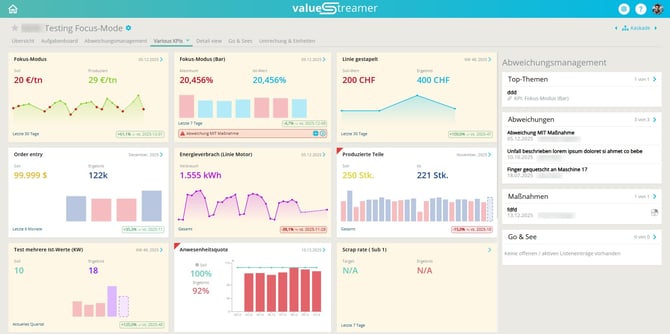
⏱️ When is focus mode displayed?
Whether a KPI is shown in focus mode depends on two factors:
-
Activation in the KPI Editor
-
Optional: Deactivation per team or template
⚠️ Focus mode only affects the overview tile on the team board, not the detail view.
⚖️ Activation requirements
The "Focus Mode" toggle in the KPI Editor is only available if the following conditions are met:
-
X-axis format = Date
-
Either one actual value or multiple aggregated actual values
ℹ️ Note: If these conditions are not met, the focus mode toggle is shown as disabled. A tooltip will explain why.
📸 Screenshot: KPI Editor with disabled toggle and tooltip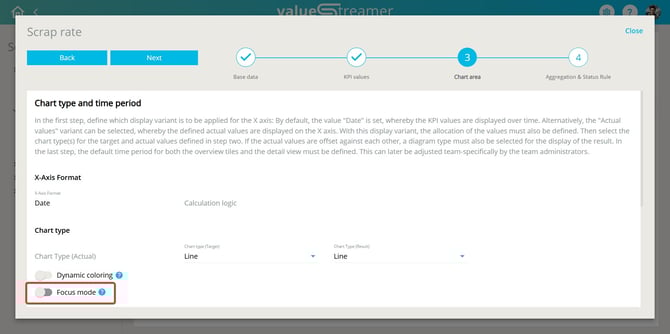
⚙️ Configuration in the KPI Editor
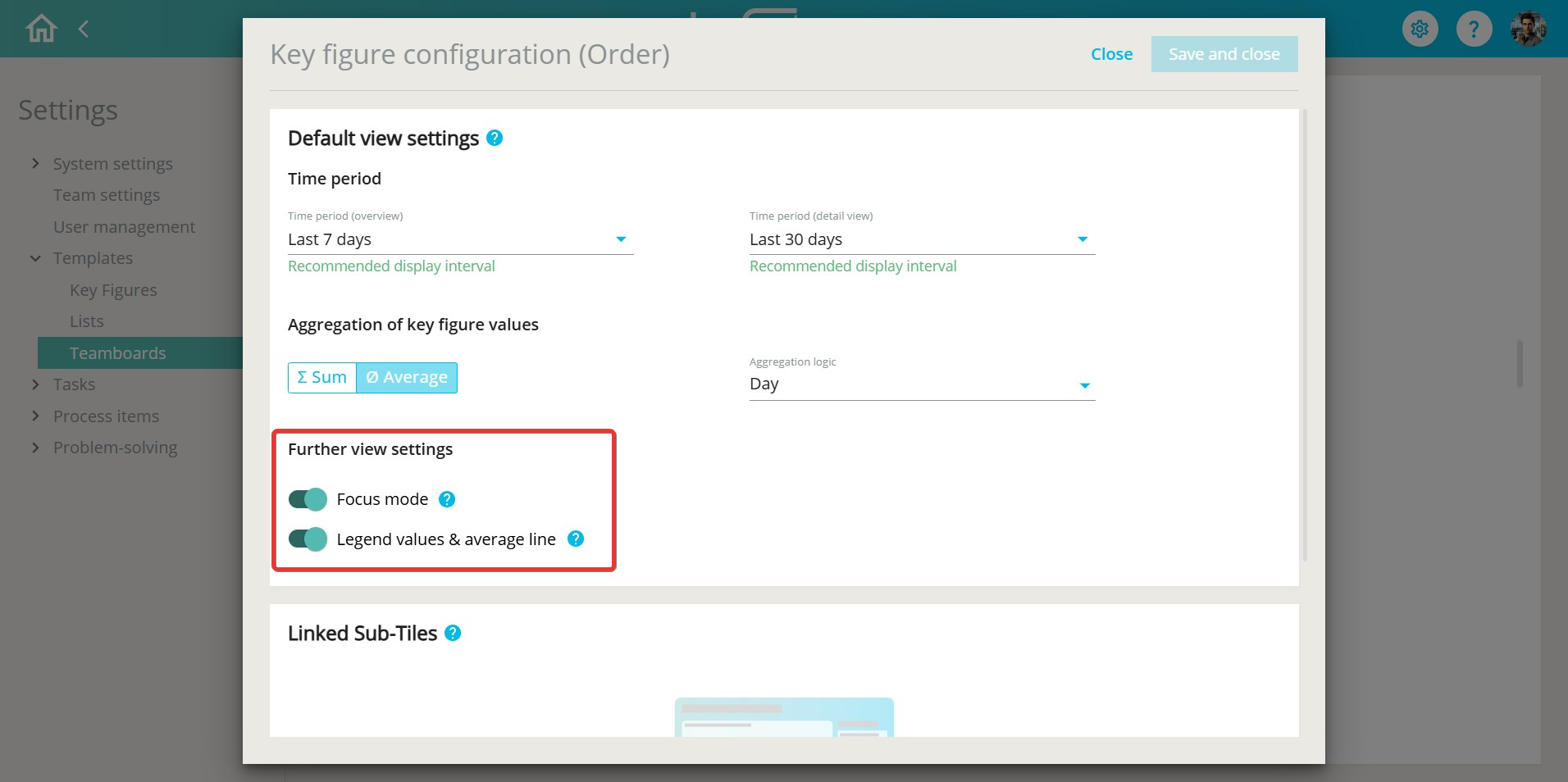
In step 3 of the KPI Editor, the "Focus Mode" toggle appears (under "Dynamic Coloring").
-
Default: Disabled (OFF)
-
Enabling shows a confirmation dialog with a preview
-
The question mark icon next to the toggle opens the preview at any time
✨ Tip: Focus mode can be activated for each individual KPI. It is deactivated by default for CORE KPIs (e.g., Hitrate, Disruption Level).
📸 Screenshot: KPI Editor with active focus mode and open preview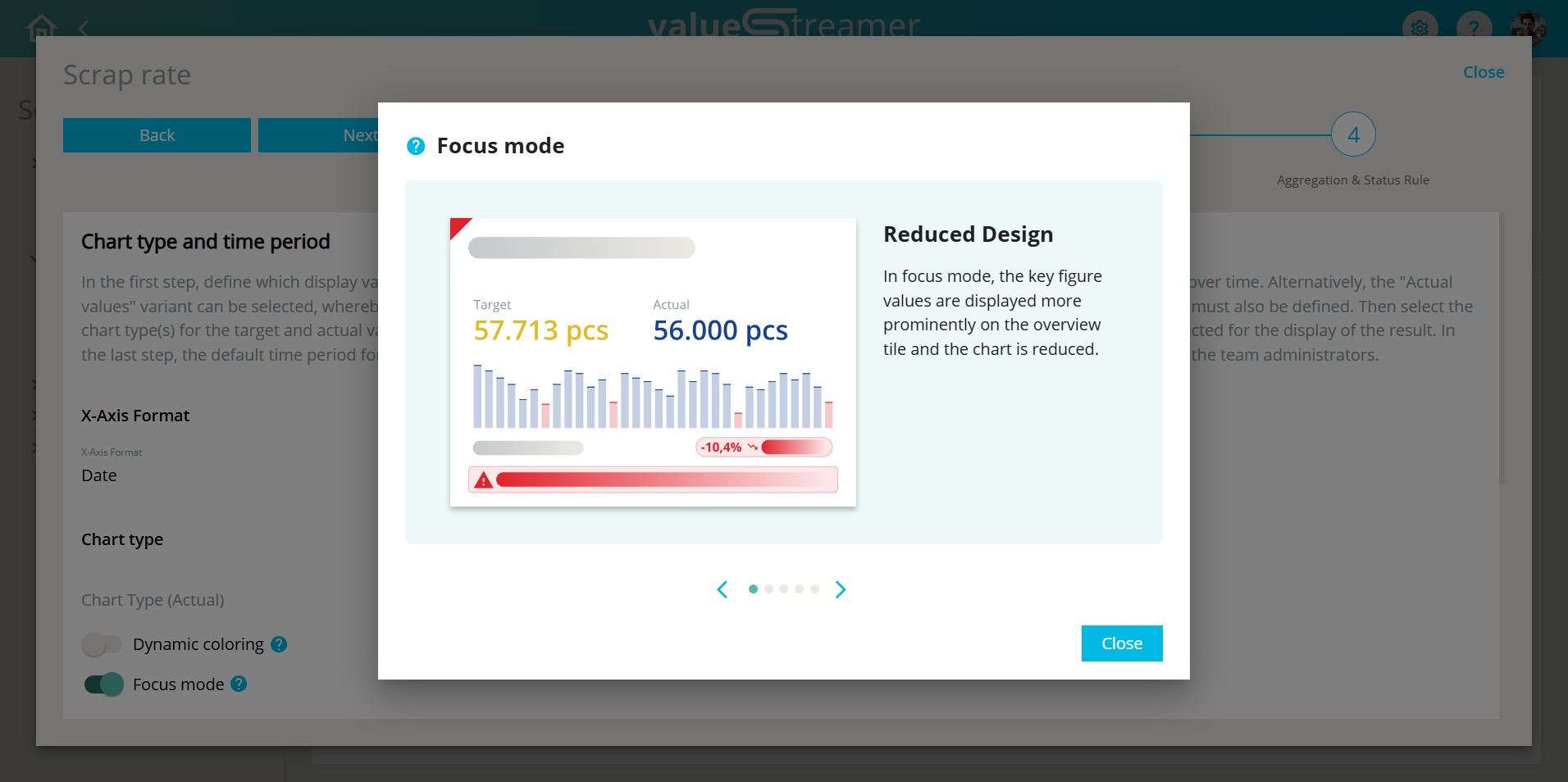
👥 Configuration for teams and templates
Team-specific (Team Administration):
-
Only possible if focus mode is enabled in the KPI Editor
-
Can be deactivated per team (but not reactivated manually)
-
The toggle appears under “Additional display settings”
Standard view:
-
Same behavior as in team administration
-
Has no effect on team views if applied to non-team KPIs
Templates:
-
Focus mode can also be preconfigured in team board templates
-
This setting can be overridden by teams
📸 Screenshot: Focus mode activated in team board template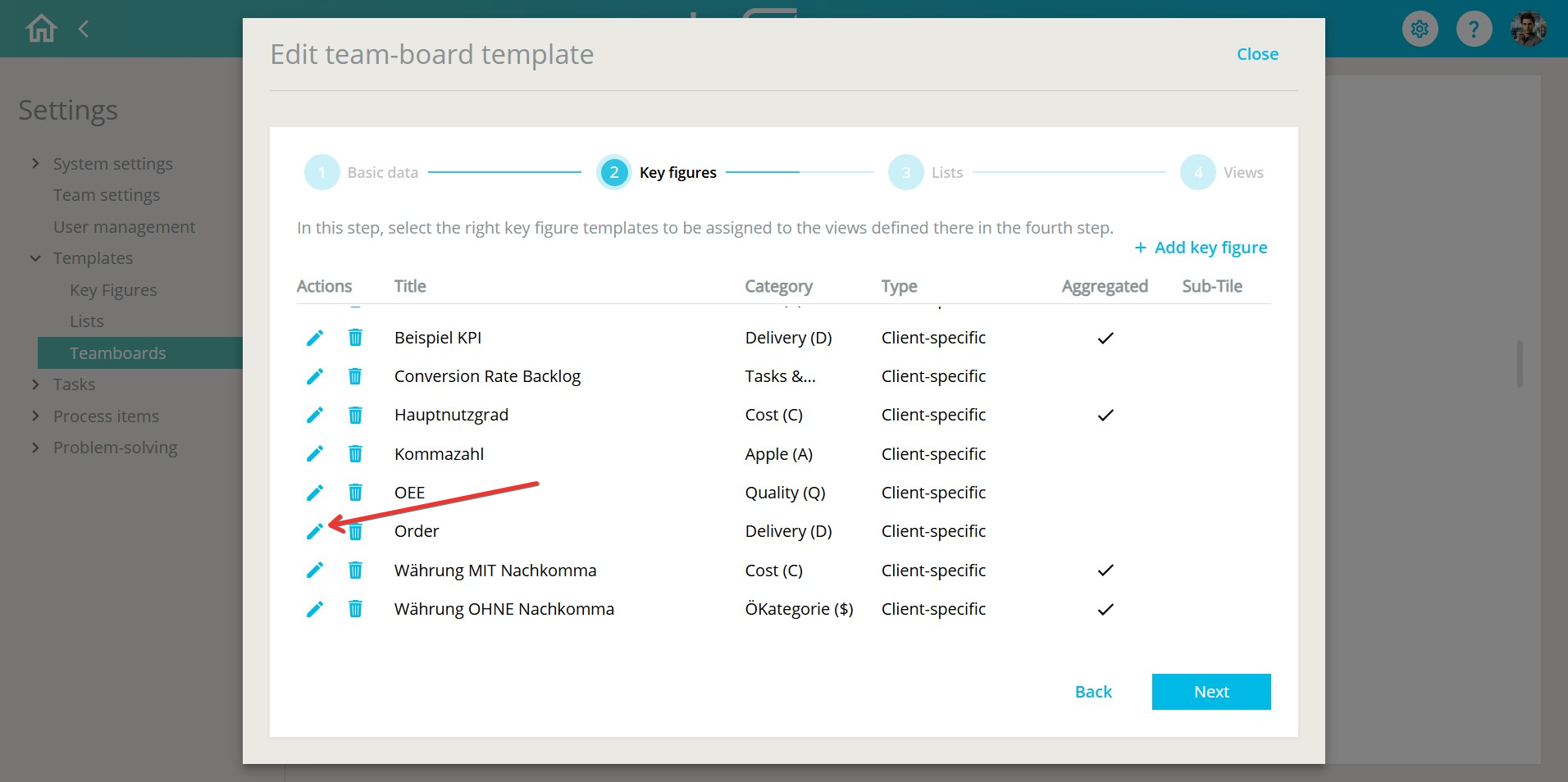
📊 Visualization in focus mode
KPI values:
-
Prominently highlighted, left-aligned
-
Target and actual values shown in large font
-
No early rounding/conversion of large numbers
Chart:
-
Strongly reduced (bar or area chart)
-
Axes and legends are hidden
-
Forecast values shown with reduced opacity and dashed outlines
-
No chart is shown if values are missing
Trend indicator:
-
Always visible if values are available
-
Color logic based on status rule (green/red)
-
Dropdown allows configuring behavior (e.g., “green if increasing”)
Other elements:
-
Display period and “N/A” shown if values are missing
-
Deviation alert shown in minimized form
-
Tooltip on mouseover shows title with timestamp
-
No effect on detail view
📸 Screenshot: Tile with focus mode + trend indicator + forecast values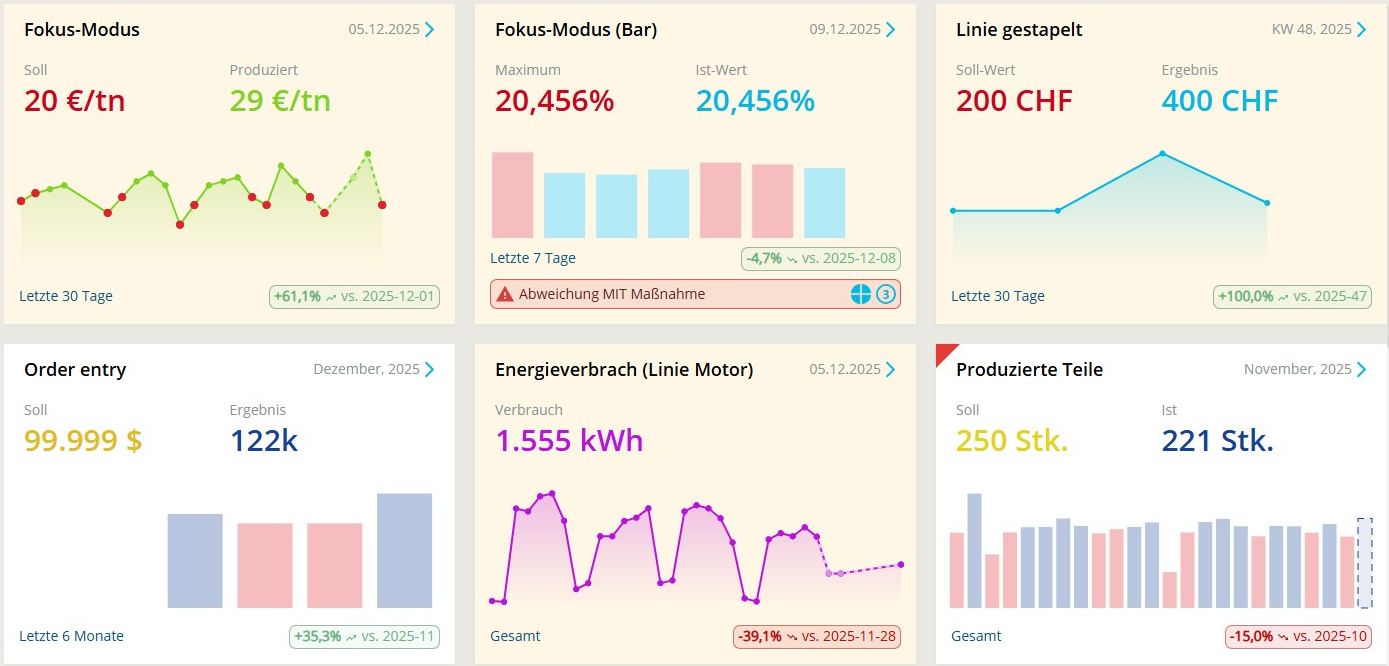
✨ Tip: Ideal for management-relevant KPIs, shop floor views from a distance, or high-focus meetings.
❓ FAQ
Can I deactivate focus mode later?
Yes, it can be disabled per team at any time.
What happens if I change relevant KPI settings?
If the activation criteria are no longer met, the tile automatically switches back to standard mode.
Is the detail view affected?
No, focus mode only affects the overview tile.