
Where communication takes place
Every element with a description field is also the place to communicate about it. Record there what would otherwise sit in an email:
- the current state of progress, with a date
- agreements made and who committed to them
- decisions and the reasoning behind them
- the next step and its due date
This is what a useful entry looks like:
Sep 2, MI: Supplier confirms the spare part for week 38. Countermeasure stays open, follow up in the shopfloor meeting on Sep 8.
Sep 2, MI: Cause narrowed down to tool wear on press 4. Tool life is now recorded daily, maintenance owns it.
Entries such as "done", "in progress", or "see email" are not useful. They cannot be evaluated four weeks later and move the information back into someone's inbox.
📸 Screenshot: Description field of a countermeasure with two dated entries on the state of progress, neutral sample data Alt text: Description field of a countermeasure with two dated entries on the state of progress.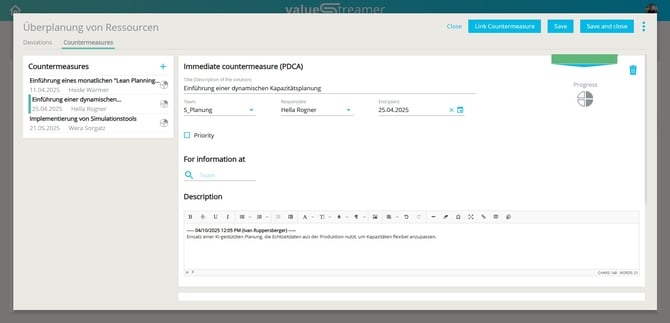
✨ Tip: Start every entry with the date and your initials. Agree on this format once in the team, and the history stays readable even with several people contributing.
ℹ️ Note: Anyone with access to the card, the list, or the team board also sees the entries in it. There is no private message to individual people.
Why there are no system emails
This is by design. An email about a status change reaches people outside the context that gives the change its meaning, and it creates a second record alongside the system. Instead, the information arrives where the work already happens:
- in the shopfloor meeting, where the cards are worked through
- on the team board, which shows the current state
- through your home page and the favorites star for the topics you follow
ℹ️ Note: When you reset your password, ValueStreamer sends an email for technical reasons. This is the only automatic message the system sends.
Setting up notifications yourself
If a process needs an active alert, for example an escalation to someone who does not work in the system every day, you build it outside ValueStreamer. There are two ways.
Through an automation tool. Tools such as Microsoft Power Automate query the ValueStreamer REST API on a schedule and trigger an action from the result, for example an email, a Teams message, or an entry in another system.
Directly through the REST API. A service of your own reads the data it needs and decides when to alert. The API uses HTTP basic authentication and the content type application/vs.v3.0+json. You read KPI values via GET /exchange/kpi-data/{date}/{team-id}/{kpi-id}.
An example of a rule you can build this way:
On working days at 07:00, read the previous day's value of the KPI "On-time delivery" for the Assembly team. If the value is below target on three consecutive days, send an email to the responsible person and to the next cascade level.
⚠️ Attention: Use a dedicated user with API permissions for the connection, not your personal account. If that account's password is changed or the account is deactivated, the integration stops without any error message in the product.
✨ Tip: Query only as often as the decision requires. For KPIs recorded once a day, one run per day is enough.
ℹ️ Note: These notifications run outside ValueStreamer and are operated by your IT.
Related articles
- Managing KPIs via REST API — the next step if you build your own notifications: authentication, endpoints, and examples.
- Synchronizing tasks between the task board and Microsoft Planner — the ready-made route if tasks should end up in a tool your team already uses.
- Working with the deviation and countermeasure list — where you keep and find the history of a deviation.
- Resetting your password — the one process that does send an email.
Frequently asked questions
Do I get an email when a task is assigned to me? No. You see new tasks on your home page and on your team's board. ValueStreamer only sends an email when you reset your password.
Who can see what I write on a card? Everyone with access to the card, the list, or the team board. Confidential content therefore does not belong in the description field.