
🔍 Contents
📌 Creating and Configuring an iFrame View
-
Click the gear icon next to the team name to open team settings.
📸 Screenshot: Open Team Settings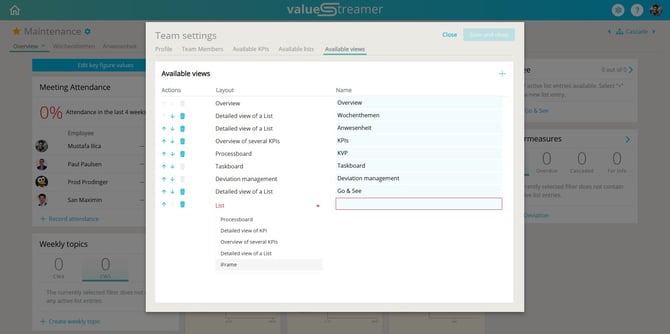
-
Switch to the Available Views tab.
-
Click the plus icon at the bottom to add a new view.
-
Select the iFrame layout type.
-
Enter a name for the view (e.g., “iFrame”).
📸 Screenshot: Enter View Name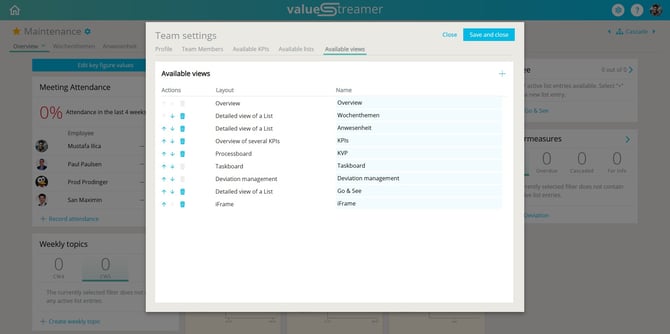
-
Click Save & Close.
-
In the board, select the new iFrame view. It will initially be empty. Click Add URL to embed an external page.
📸 Screenshot: Empty iFrame View with Prompt to Add URL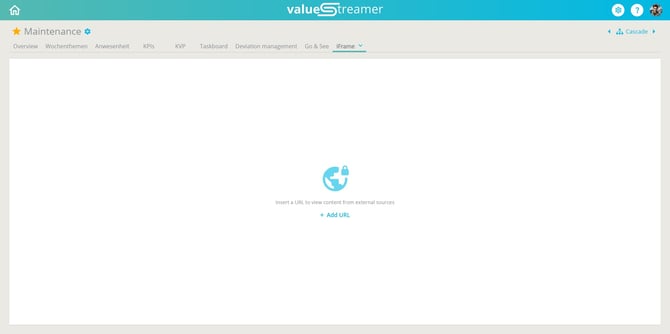
-
Enter the URL of the external page (e.g.,
https://editor.swagger.io/).
📸 Screenshot: Enter URL for Embedded Page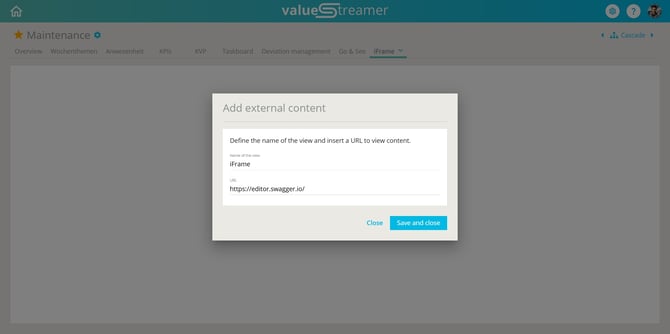
-
Confirm with Save & Close.
-
The embedded web page will now display directly in the board.
📸 Screenshot: Embedded Swagger Page in Board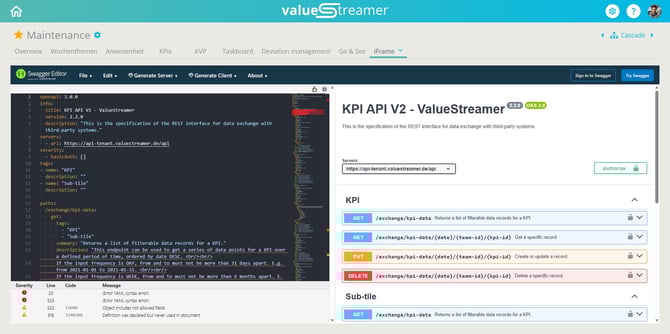
ℹ️ Note: The iFrame layout type can be added both in existing team boards and in team board templates. The URL is not a required field.
⚠️ Important: The right panel for deviation management is not available in iFrame layouts.
✨ Tip: Make sure the embedded page is responsive. If the page is not responsive, scrollbars may appear inside the iFrame.
📌 Requirements for Embedding
ℹ️ Note: For a detailed technical explanation of the requirements for embedding third-party content via iFrame, please refer to the following article: 📎 iFrame: Technical Requirements
To successfully embed content from a third‑party provider in an iFrame, the following technical requirements must be met:
iFrame must be allowed
-
No
X‑Frame‑Options: DENYorSAMEORIGINheader -
Content‑Security‑Policy (CSP) must allow:
frame‑ancestors https://app.yourdomain.tld(or similar)
HTTPS Connection
-
The embedded page must be reachable over HTTPS (no mixed content)
Authentication
-
Ideal: Single Sign‑On via SSO (e.g., SAML/OIDC) with a shared Identity Provider
-
Alternative: Token‑based embedding or manual login with browser remember
Your Application’s CSP
-
The third‑party domain must be included in
frame‑src(orchild‑src) if CSP is enforced
Technical Behavior & Layout
-
The embedded site should be responsive
-
iFrames may show scrollbars if the browser window is too small
✨ Tips & Best Practices
-
For SSO: Ensure the embedded page uses the same Identity Provider (e.g., EntraID).
-
Make sure iFrame‑relevant headers are correctly configured.
-
When possible, agree on token‑based embedding with the third‑party (e.g., embed tokens or signed URLs).
❓ FAQ
Why is the embedded page not displaying?
Check the browser console for one of the following error types:
-
“refused to display in a frame”
-
Mixed content warnings (HTTP inside HTTPS)
-
CSP errors related to
frame‑ancestors
Can I embed login‑protected pages?
Yes — as long as the authentication method supports iFrame‑friendly flows (SSO or token‑based session). Cookies must be set correctly (SameSite=None; Secure).
Do ValueStreamer show error messages?
No — technical errors (e.g., 403 or login failures) originate from the embedded site or the browser.
Can I interact with content inside the iFrame (buttons, dropdowns)?
Yes — full read‑only interaction is supported.