
🔍 Contents
- The "Include subordinate levels" toggle
- Displaying deviations from all levels
- Displaying actions from all levels
- Identifying the origin of a deviation (column "Team")
- Permissions and restrictions
- Tips & Best Practices
- FAQ
The "Include subordinate levels" toggle
- Open the desired process card in the process board.
- Switch to the Deviation Management tab.
- In the header area of the Deviations list and of the Actions list you will find the Include subordinate levels toggle.
📸 Screenshot: "Deviation Management" tab of a process card with the toggle in the header area of both lists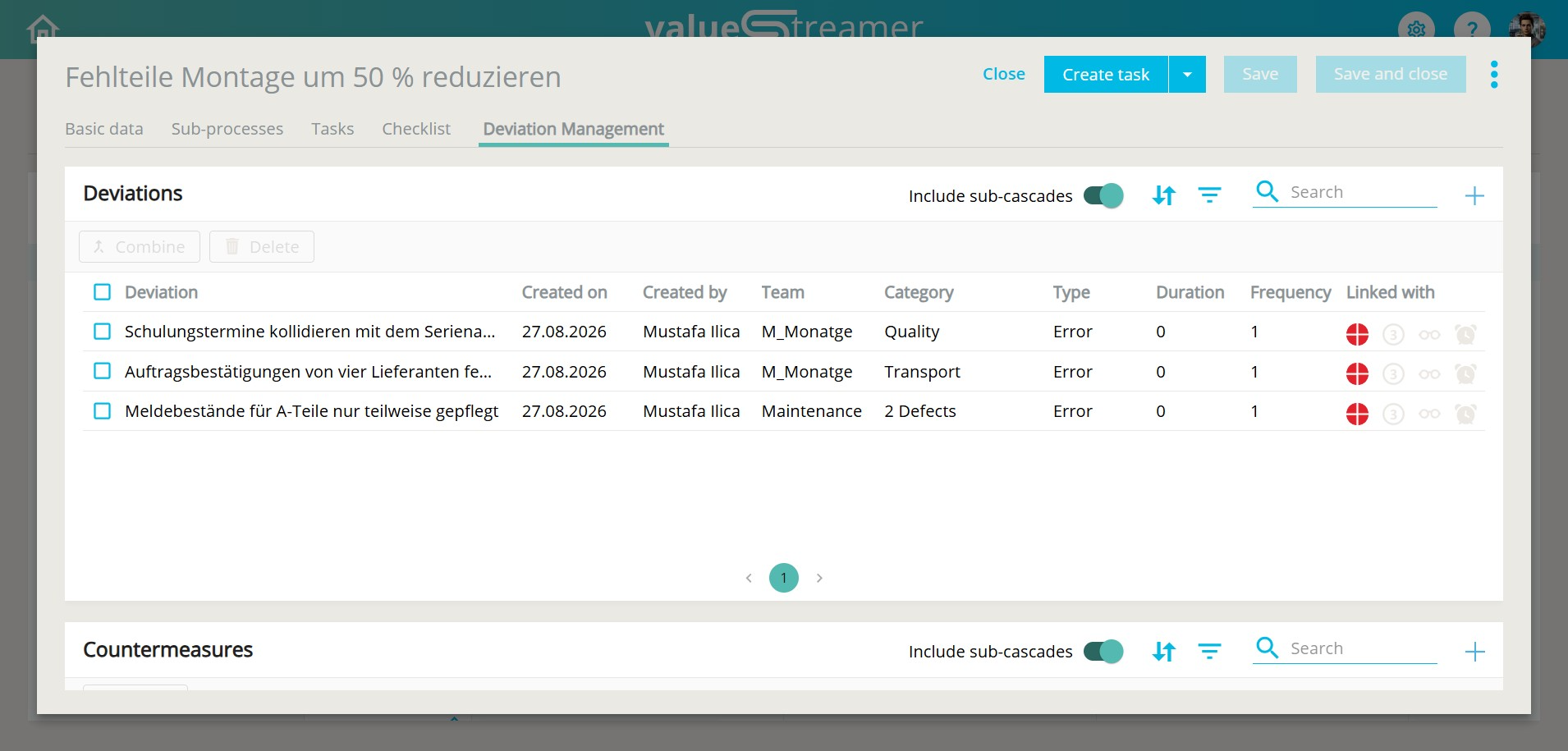
ℹ️ Note: Both toggles are coupled. If you switch the toggle on the deviation list, the toggle on the action list switches with it automatically – and vice versa. Both are always in the same position.
ℹ️ Note: The toggle is active automatically as soon as at least one deviation exists in a linked sub-process, in a task of a sub-process, or in a task of the process card itself. After the update to 26.2.1 you will therefore see more entries in such process cards than before.
ℹ️ Note: If there are no deviations in the linked sub-processes and tasks, the toggle is greyed out and cannot be activated. A tooltip on mouse-over explains: "There are currently no deviations in linked sub-processes or tasks."
📸 Screenshot: Greyed-out toggle with tooltip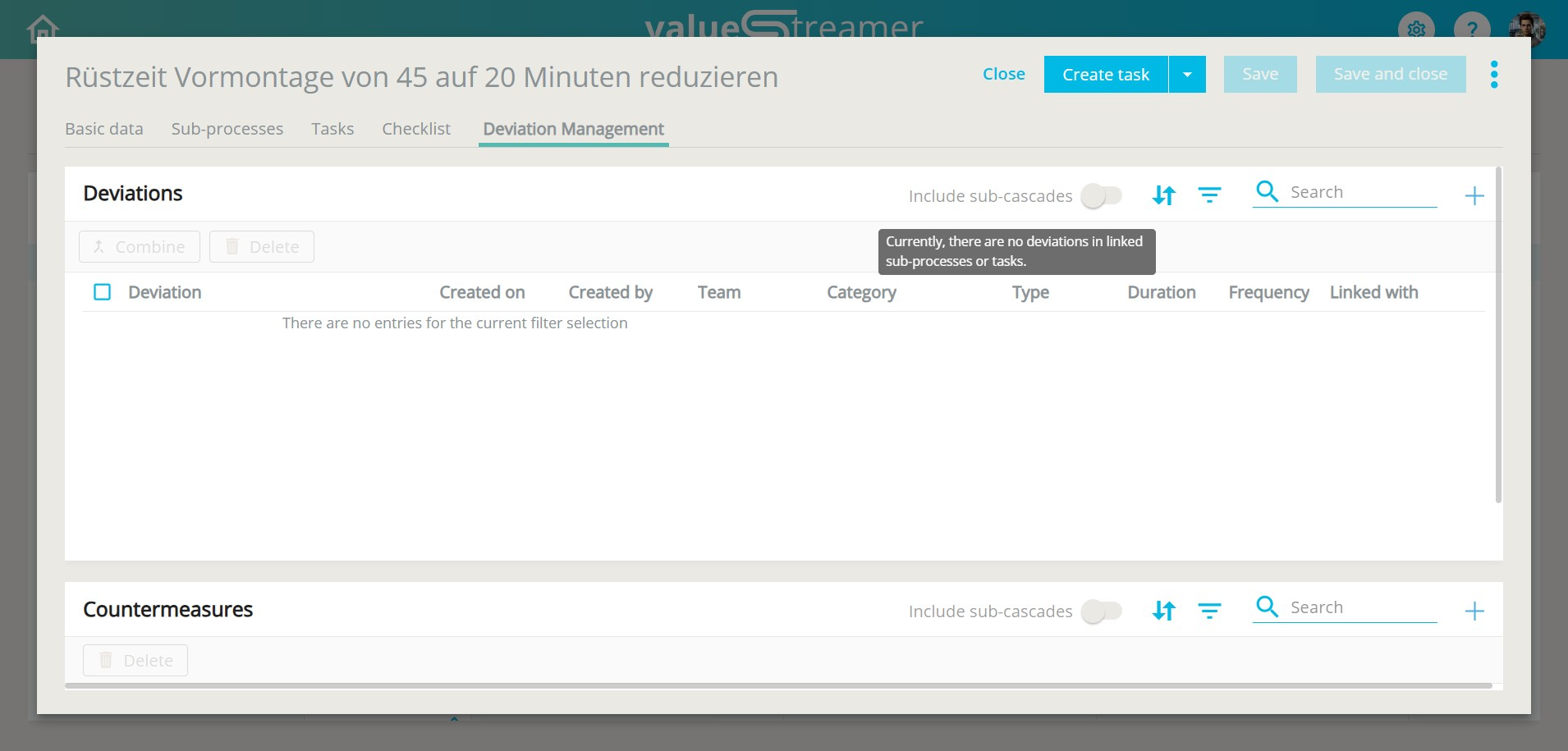
Displaying deviations from all levels
- Activate the Include subordinate levels toggle.
- The Deviations list now additionally shows all deviations from:
- the tasks of the process card itself
- all linked sub-processes
- the tasks of these sub-processes
- Combine the toggle with the existing quick filters. Both filters work together (AND link):
| Toggle active + quick filter | What is displayed |
|---|---|
| Active | All active deviations of the process, including sub-processes and tasks |
| Without action | All active deviations without a linked action, including sub-processes and tasks |
| Closed | All closed deviations, including sub-processes and tasks |
4. Deactivate the toggle to see only the deviations of the current process card, as before.
Displaying actions from all levels
The toggle acts on the Actions list at the same time. With the toggle active, all actions belonging to the included deviations appear there – again in combination with the selected quick filter:
| Toggle active + quick filter | What is displayed |
|---|---|
| Active | All active actions, including sub-processes and tasks |
| Overdue | All overdue actions, including sub-processes and tasks |
| Cascaded | All cascaded actions, including sub-processes and tasks |
Identifying the origin of a deviation (column "Team")
In the deviation list of the process card there is the Team column to the right of Created by. It shows which team a deviation originates from.
ℹ️ Note: The Team column is always visible – regardless of whether the toggle is active.
How to sort by team:
- Click the sort icon of the deviation list.
- Select the entry Team (A–Z). It is located between Created by and Category (A–Z).
- The list is sorted alphabetically by team abbreviation.
📸 Screenshot: Sort menu with the new entry "Team (A–Z)"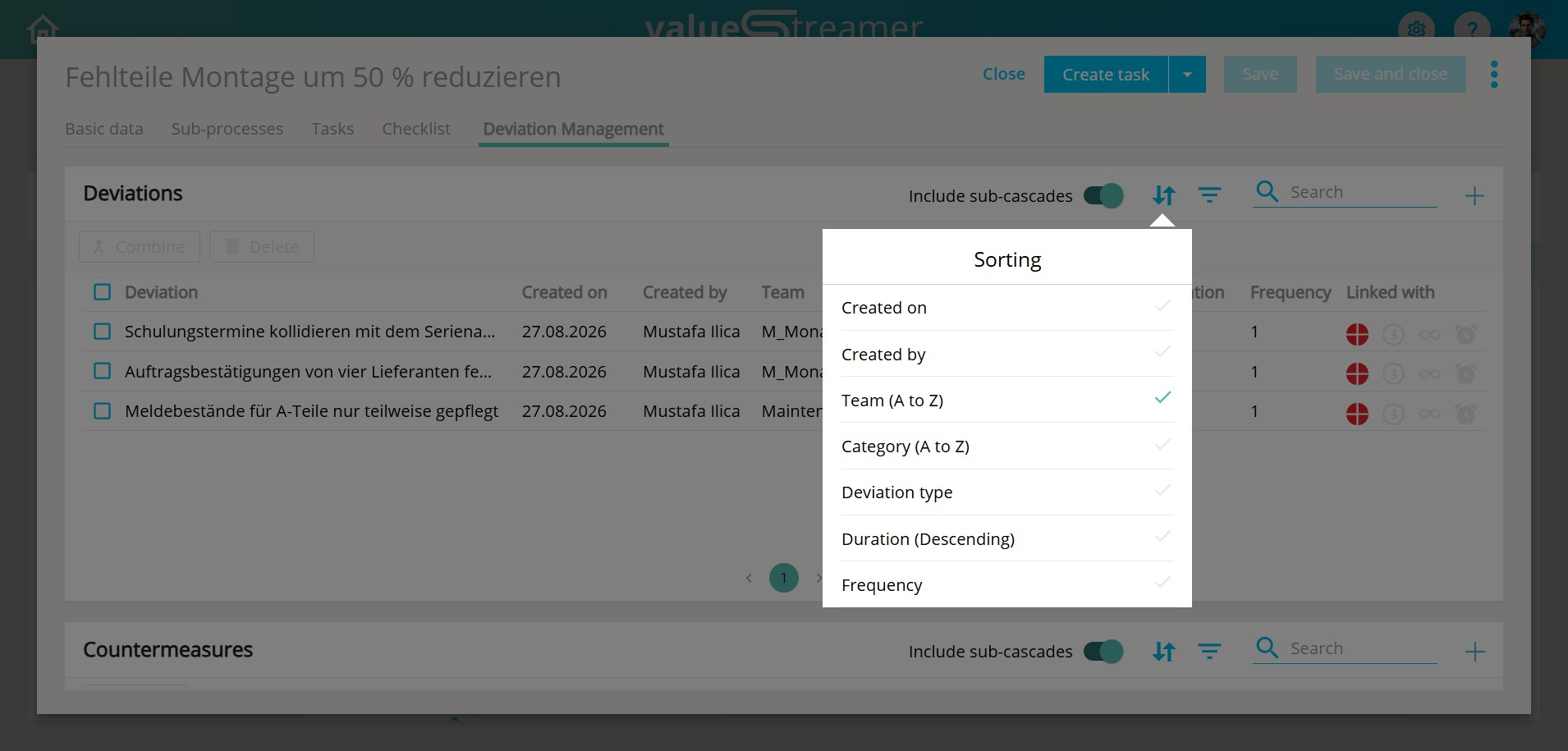
Permissions and restrictions
The function does not change anything about the role and permission concept. The same logic applies as in the team's main deviation list:
- Deviations and actions from teams in which you are not a member or have no write permissions are displayed in read-only mode.
- Deviations and actions from teams in which you have write permissions, or for which you are responsible, can be edited by you.
- For cascaded actions, all members of the creating team retain read and write access.
- Deletion is possible if you have write permissions in the responsible team or in the creating team.
⚠️ Attention: With the toggle active, the Merge button is deactivated. A tooltip points this out: "This function is only available if the 'Include subordinate levels' toggle is deactivated." Switch the toggle off to merge deviations of the current process card.
✨ Tips & Best Practices- Project closure and lessons learned: Activate the toggle at the end of a project and filter by Closed. You get the complete list of all deviations that occurred in the course of the operation – without going through the individual tasks.
- Detect escalations early: If you steer an operation via the topmost process card, the active toggle combined with the Active filter shows you immediately whether deviations have accumulated at task level that endanger the overall project.
- Use the "Team" column: Sort by team to identify in which area deviations are accumulating.
- Switch the toggle off before merging: Merging only works within the current process card. Deactivate the toggle before you bundle deviations.
Why do I suddenly see more deviations in my process card than before? As of version 26.2.1, the Include subordinate levels toggle is active automatically as soon as there are deviations in linked sub-processes or tasks. Deactivate the toggle to see only the deviations of the current process card.
Why is the "Include subordinate levels" toggle greyed out? There are currently no deviations in the linked sub-processes and tasks. As soon as a deviation is created there, the toggle can be activated.
Why can't I merge deviations in the process card? The Merge button is deactivated as long as the Include subordinate levels toggle is active. Switch it off and then merge the deviations.
Why can't I edit a displayed deviation? The deviation originates from a team in which you are not a member or have no write permissions. It is displayed in read-only mode. The Team column shows which team created the deviation.
Are deviations from higher-level processes displayed as well? No. The toggle only includes levels below the current process card: tasks, sub-processes, and their tasks.