
🔍 Contents
- Closing a single entry
- Completing multiple entries at once
- Accessing closed entries
- Tips & Best Practices
- FAQ
🛠️ Closing a single entry
- Open the list – Open the desired list, e.g. "Top Topics" or "Feedback".
- Select the entry – Click on the entry you want to mark as "done".
- Set the status "Done" – In the entry dialog, activate the "Done" checkbox.
📸 Screenshot: Activating the "Done" checkbox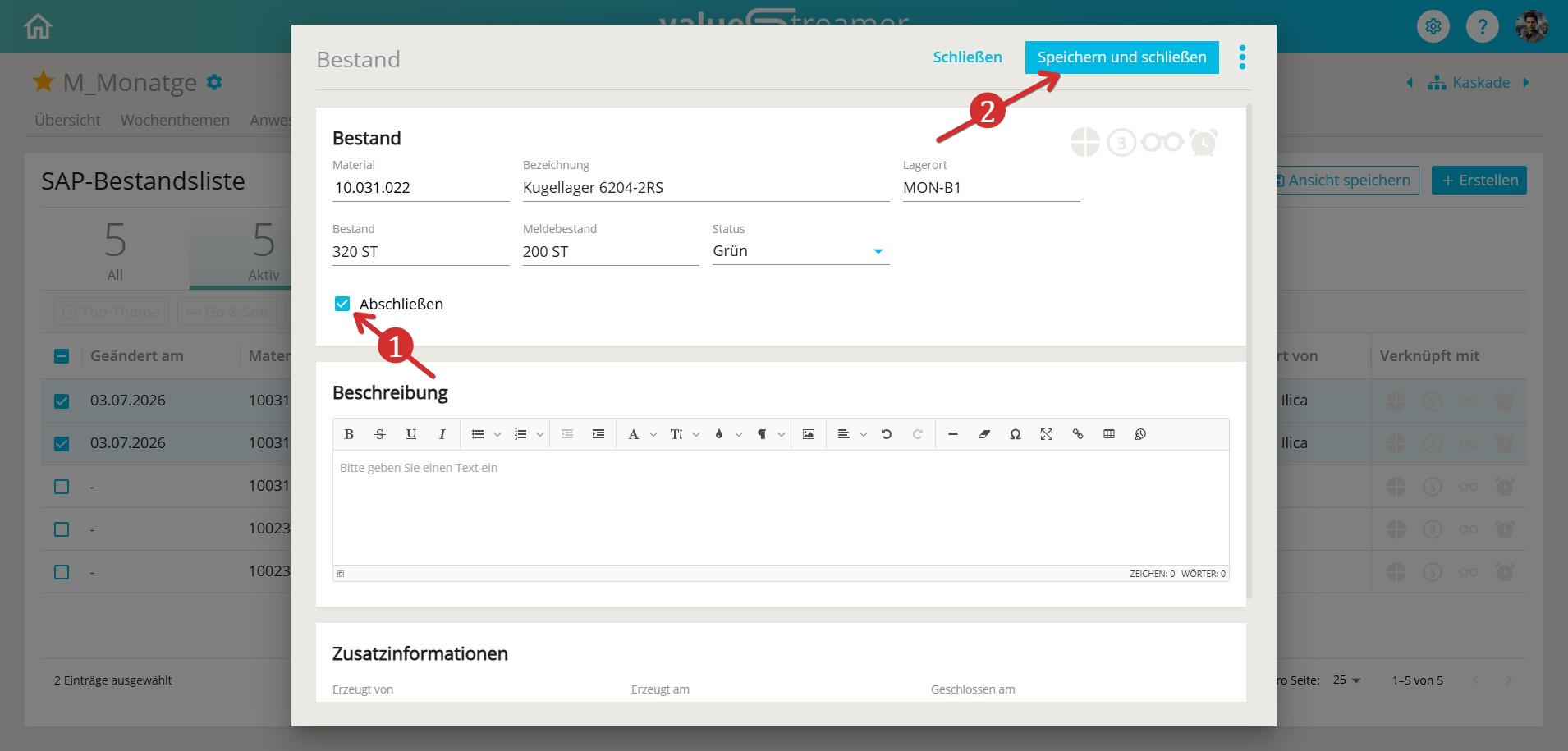
- Save and close – Complete the process with "Save and close".
The entry disappears from the "Active" tab and appears in the "Closed" tab.
📸 Screenshot: "Closed" view in the tab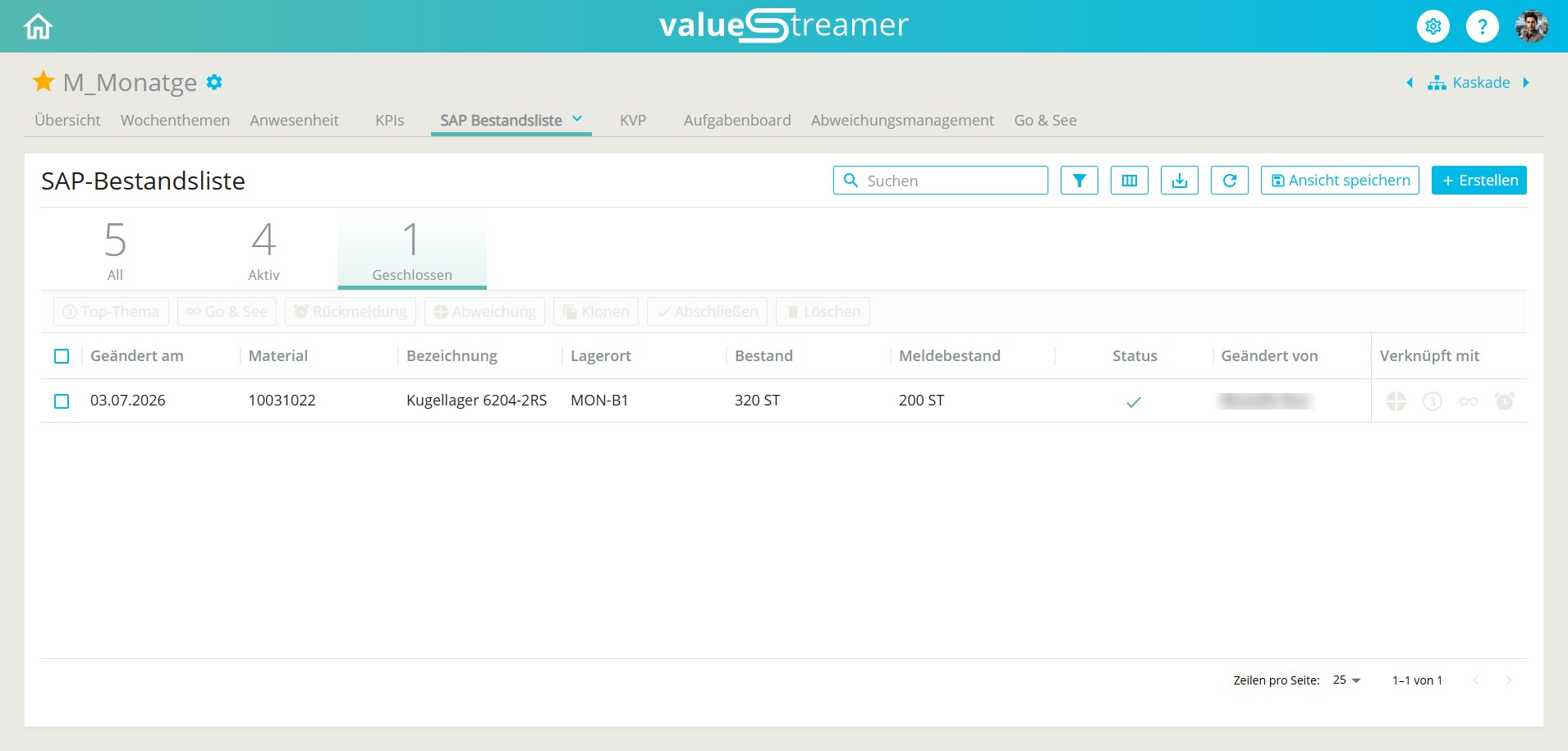
ℹ️ Note: Setting the status "Done" assigns the status "Closed". Both terms describe the same process: the entry is thereby considered completed.
🔀 Completing multiple entries at once
With the List Editor 2.0, you can complete multiple entries in a single step – ideal for post-meeting follow-up.
- In the list view, activate the checkboxes of the desired entries – or select all via the header checkbox.
- In the action bar that appears, click "Complete".
The selected entries are archived collectively as done and moved to the "Closed" tab.
📸 Screenshot: Multi-select with the "Complete" action (Design 2.0)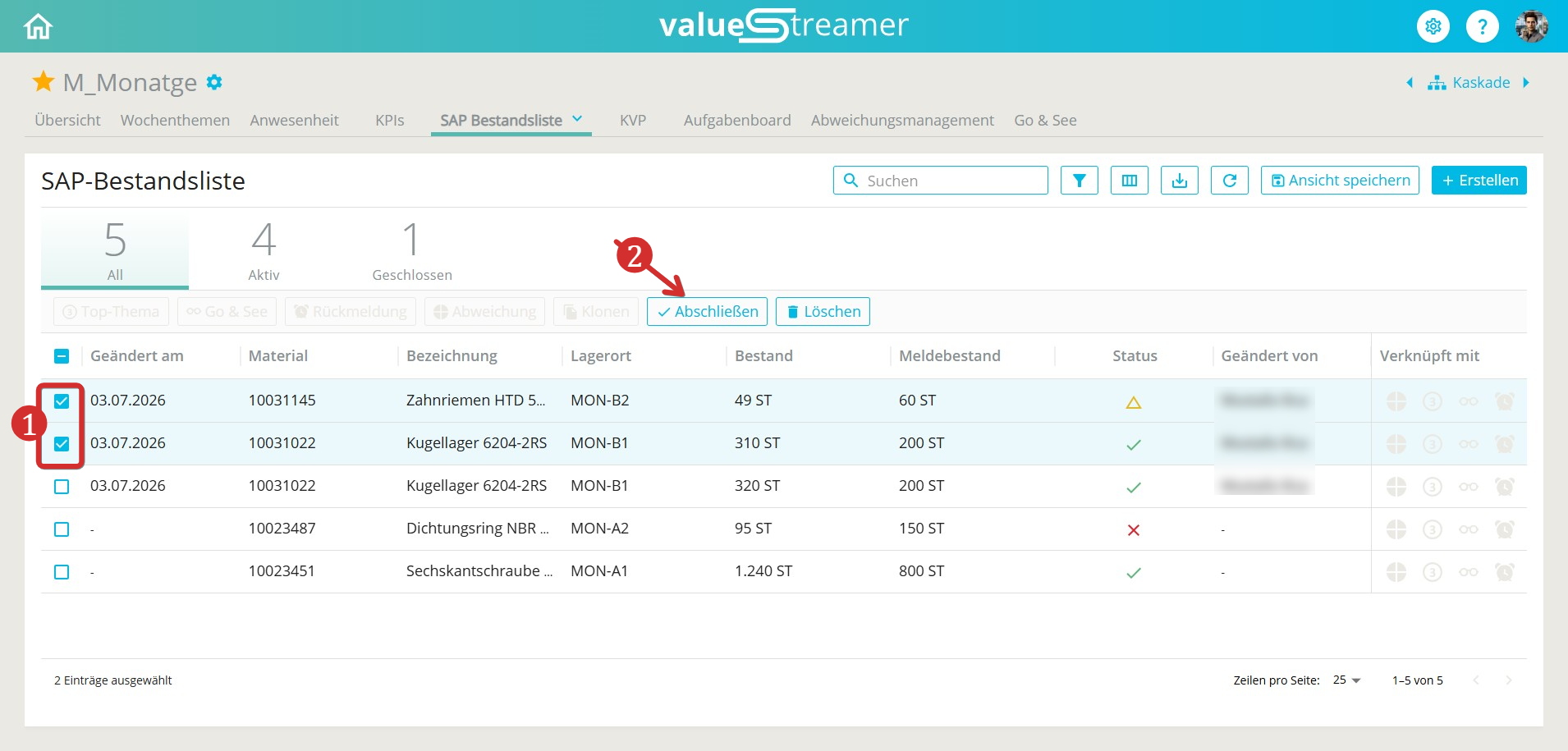
✨ Tip: Use the multi-select directly after a meeting to close all discussed and completed items in a single step.
📂 Accessing closed entries
Closed entries are retained and can be viewed at any time.
- Switch to the "Closed" tab in the list to display all completed entries.
ℹ️ Note: Closed entries are only available in read-only mode and can no longer be edited.
✨ Tips & Best Practices
- ✅ Use the status as a completion signal: Apply the "Closed" status consistently to clearly mark completed items – ideal for meetings and reviews.
- ⚠️ Caution – check dependencies: Only close entries when all open measures and links are fully completed.
- 🔁 Avoid frequent opening and closing: Consistent status management ensures clarity and prevents confusion within the team.
❓ FAQ
How do I close multiple entries at once? → Activate the checkboxes of the desired entries in the list view and click "Complete" in the action bar.
Can I edit closed entries? → No, closed entries are only available in read-only mode.
Can closed entries be reopened? → (Clarification required: the previous meta description mentions reopening, whereas the article body rules out editing. Please confirm from a product perspective – this section may be extended with the steps for reopening.)
What happens to linked measures or deviations when closing? → These remain in place. The status of the entry does not affect the links.
How do I recognize that an entry is closed? → The entry appears in the "Closed" tab. In addition, the editing dialog is disabled.