
- The "Source" section at a glance
- Setting the link when creating a deviation
- Changing the link later
- Jumping to the linked element
- The link when merging deviations
- Tips & Best Practices
- FAQ
The "Source" section at a glance
You will find the Source section in every deviation directly below the description field. It consists of three selection fields next to each other:
| Field | Content | Editable |
|---|---|---|
| Team | Abbreviation of the team the deviation belongs to | No |
| Object type | None, KPI, the team's lists, Task, or the team's process boards | Yes |
| Object element | The specific element of the selected object type, e.g. the KPI or the task | Yes, as soon as an object type is selected |
📸 Screenshot: Opened deviation with the "Source" section below the description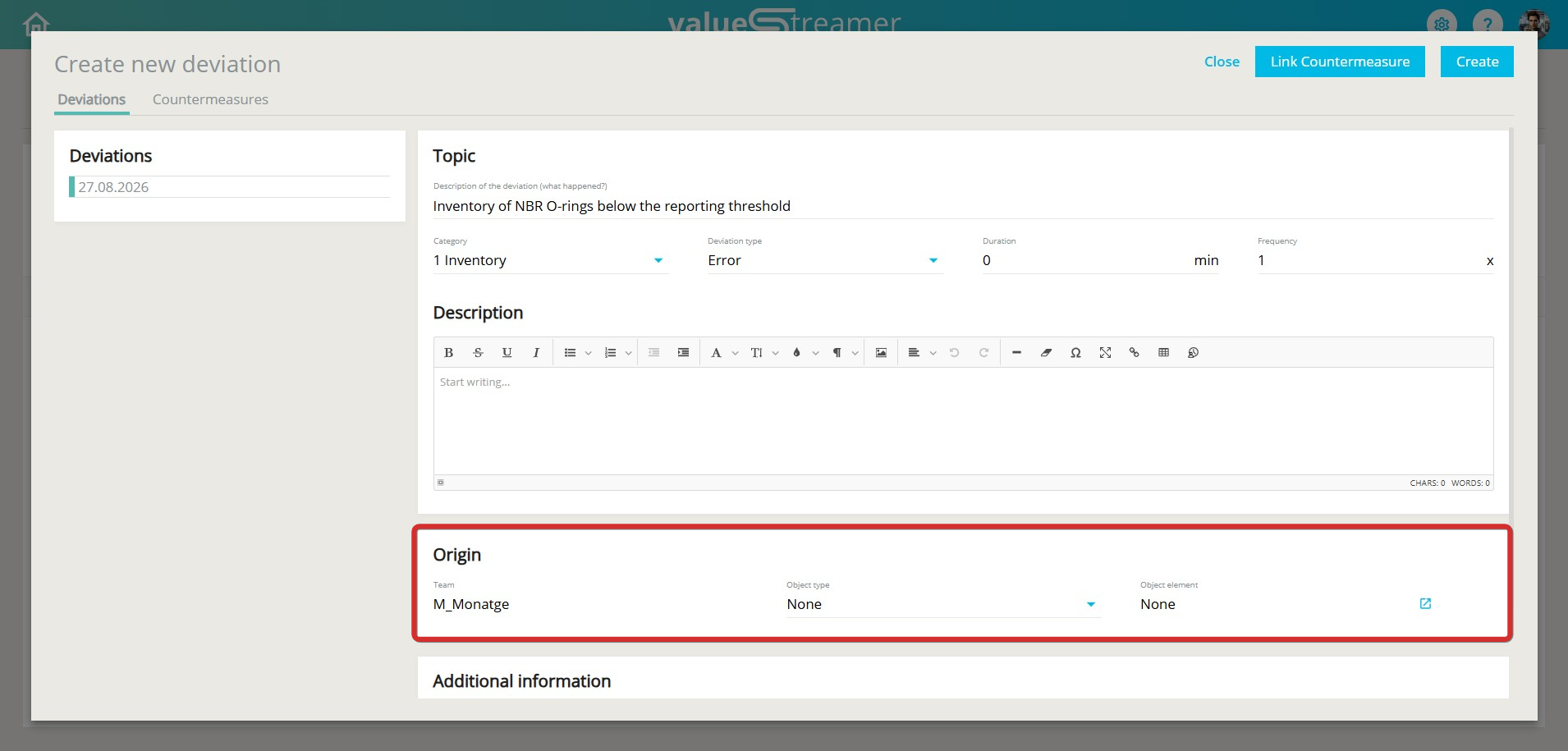
ℹ️ Note: Only team members with write permissions can set or change the source of a deviation.
Setting the link when creating a deviation
- Create the deviation as usual, for example via ➕ Create deviation on a KPI, on a task, in the process board, or in the deviation list.
- Check the Source section. The fields are already pre-filled depending on where the deviation was created: if you create the deviation from a KPI, the object type KPI and the KPI title are already entered in the form.
📸 Screenshot: Pre-filled "Source" section when creating a deviation from a KPI
- If you create the deviation on the home page or in the deviation list, the object type is None at first. Select the matching object type if required.
- Then select the specific element in the Object element field. The list shows all matching elements of the team.
ℹ️ Note: As soon as an object type is selected, the object element becomes a mandatory field. The deviation can only be saved once an element has been selected as well. With object type None, the field stays inactive and the deviation is assigned to the team only.
ℹ️ Note: A list entry can only carry one deviation. List entries that already have a deviation therefore do not appear in the selection. - Fill in the remaining mandatory fields and click Save.
Changing the link later
- Open the deviation, for example from the deviation list or via the home page.
- Switch to edit mode.
- In the Source section, change the object type and select the new object element. To remove the link, select None as the object type.
- Click Save.
📸 Screenshot: Edit mode of a deviation – object type is changed from "List" to "KPI"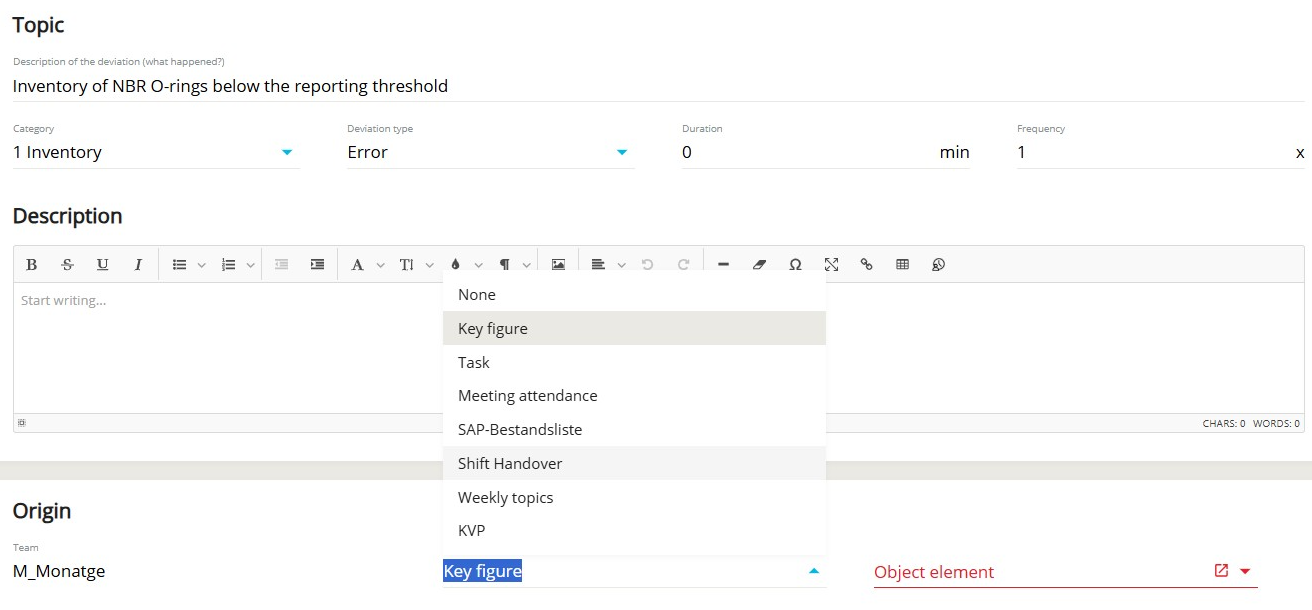
ℹ️ Note: After reassigning, the deviation appears in the deviation management of the new object, for example in the deviation list of the KPI. This applies equally to KPIs, list entries, process elements, and tasks.
⚠️ Attention: In the following cases, object type and object element are locked and cannot be changed:
- The deviation originates from the CORE KPI Occupational Safety. It is permanently linked to this KPI.
- The object element belongs to a different team than the deviation itself.
Jumping to the linked element
To the right of the Object element field there is a jump link. Clicking it opens the linked element directly, for example the KPI or the task.
⚠️ Attention: Clicking the jump link closes the open deviation. Unsaved changes are lost. Save your changes first.
The link when merging deviations
The Source section also appears in the dialog for merging several deviations. The Team field is pre-filled; object type and object element are empty at first. You can set the source of the new parent deviation freely.
ℹ️ Note: For actions and A3 reports that are linked to a deviation, the field containing the originating team is called Source team.
✨ Tips & Best Practices- Clean up existing deviations: Deviations that are so far assigned to the team only can be recognized by the object type None. Link them to the matching object afterwards so that they become visible in the evaluation of the respective KPI or task.
- Save first, then jump: Only use the jump link after you have saved your changes.
- Link directly in the daily: Record deviations directly from the KPI or the task whenever possible. The source is then already pre-filled and you save yourself the follow-up work.
- Use category and source together: The category controls the Pareto analysis, the source controls where the deviation appears in deviation management. Maintain both consistently.
Why can't I save the deviation although all mandatory fields are filled in? Check the Source section. As soon as an object type is selected, an object element must be selected as well. Select an element or set the object type to None.
Why does a certain list entry not appear in the object element selection? A list entry can only carry one deviation. If the entry already has a deviation, it is no longer offered. In this case, open the existing deviation of the list entry.
Why are object type and object element greyed out in my deviation? Either the deviation originates from the CORE KPI Occupational Safety, or the linked object element belongs to a different team than the deviation. In both cases the link is fixed.
Can I assign a deviation to a different team? No. The Team field cannot be changed. Via object type and object element you only select elements of your own team.
Where do I find the previous "Source" field under the additional information? The field is discontinued as of version 26.2.1. The information is now located in the Source section directly below the description.