All these flows use one or more dataverse tables described in:
How to rebuild / implement a flow in another enviroment
How to rebuild / implement a flow in another enviroment
Introduction
In general the PowerAutomate Flows are used to connect Planner and ValueStreamer via http-Reqests and dataverse tables. The dataverse tables store task-data from both systems and synchronize that data.
Dataverse-Tables
Two Dataverse-Tables are needed:
-
User-Table
-
This will match the Users of Valuestreamer to the Users of Planner
-
-
Task-Table
-
This will be the transformation table. Tasks from Valuestreamer will be written into it and send to Planner.
-
|
Flow |
needed Dataverse-Table |
|---|---|
|
02_Get tasks from Valuestreamer to Planner |
User-Table Task-Table |
|
03_Update ValueStreamer when Planner task is completed |
Task-Table |
Import a table
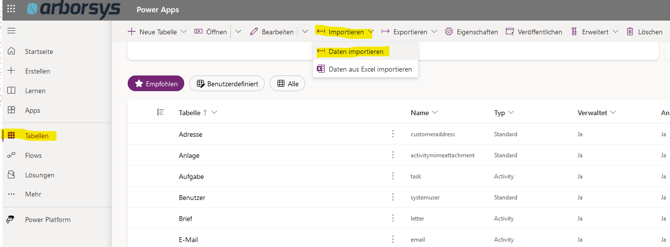
If a table already exists in a different enviroment, then an admin can export the table and import it to another enviroment (Screenshot_Import_Table). In this case the existing data in the table should be deleted after the import.
The settings for each column have to be checked (and corrected or you adapt certain fields in the flow later):
-
It may happen that the internal name of a colum is translated to german if your user-language is also german
-
In general the smallest possible datatype is used for a column
-
If your original table had a column with DateTime and the value is only a Date, then the import would use only Date as datatype
-
(Screenshot_Import_Table)
Create a table
If the table does not already exist, then the table has to be created (Screenshot-Create_Table).
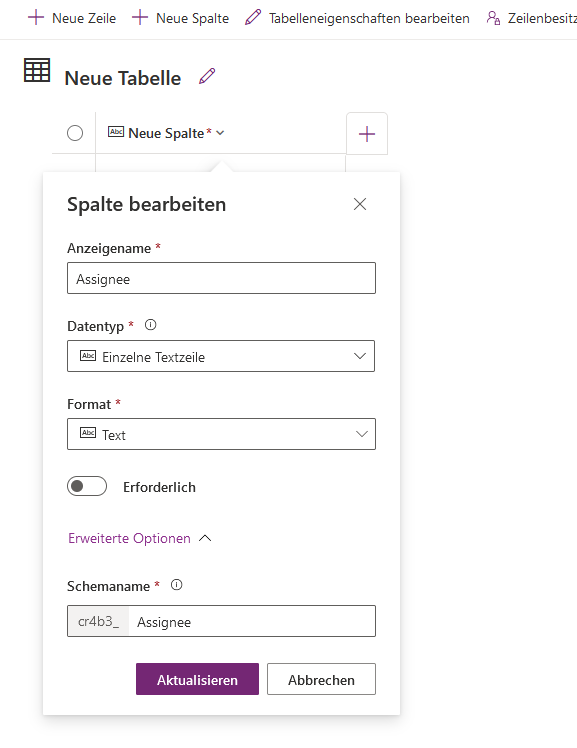
Some columns have to be created manually by the user. These columns get automatically the internal name cr4b3_ColumnName (Screenshot_User_Table). For example the column Assignee is internally called cr4b3_Assignee. cr4b3 has some unknown system meaning for dataverse.
Columns without c34b3 are automatically generated when creating a table.
(Screenshot-Create_Table)

-png.png?width=630&height=340&name=grafik-20240126-121514%20(1)-png.png)

Create User-Table
The User-Table needs the following columns:
(Screenshot_User_Table)



-png.png?width=670&height=342&name=grafik-20240130-063954%20(1)-png.png)
Some columns and names have to be added manually:
-
VS_EjotPoC_User → as tablename
-
UUID → as first column, it will get the addition “Primäre Namensspalte” (can also be set via table-settings “Tabelleneigenschaften bearbeiten”)
-
Other columns as seen in the screenshot (Screenshot_Manual_Columns_User_Table)
(Screenshot_Manual_Columns_User_Table)

-png.png?width=670&height=114&name=grafik-20240129-130258%20(1)-png.png)
Import User-Data
Once the table is created the User-Data has to be entered manually (Screenshot_New_Entry). Open the table, wait unitl it is fully loaded and add new data in the row at the bottom.
UUID = UUID of the User in the ValueStreamer-System
E-Mail = E-mail of the User, the User must have the same email in Valuestreamer and in Planner
(Screenshot_New_Entry)


Create Task-Table
The task table needs the following columns:
(Screenshot_Task_Table)

-png.png?width=670&height=382&name=grafik-20240126-121257%20(1)-png.png)

-png.png?width=670&height=157&name=grafik-20240126-121330%20(1)-png.png)
Some columns and names have to be added manually:
-
VS_EJOT_PoC_Tasks → as tablename
-
UUID → as first column, it will get the addition “Primäre Namensspalte” (can also be set via table-settings “Tabelleneigenschaften bearbeiten”
-
Other columns as seen in the screenshot (Screenshot_Manual_Columns_User_Table)
(Screenshot_Manual_Columns_Task_Table)

-png.png?width=670&height=227&name=grafik-20240129-131814%20(1)-png.png)
PowerAutomate
After the dataverse-tables have been created the power automate flow has to be created or imported from another enviroment.
+++++++++++++++++++++++++++++++++++++++++++++++++++++++
Get tasks from Valuestreamer to Planner
This flow can be used to:
-
get tasks from a certain ValueStreamer-Team to the Teams-Planner-View
-
update tasks that are already in the Teams-Planner-View with the latest data from ValueStreamer (for example if the assignee has been changed)
-
if user gets a task assigned due to this flow, then the user is informed via an automatically teams-message
How does the flow work (High-Level-View):
A user-table matches the users from ValueStreamer and Planner.
A Task-Table matches the data about tasks from ValueStreamer and Planner.
If the flow is triggered all tasks from ( a certain Team in) ValueStreamer are compared with the Task-Table and either a new row is created or an existing row is updated in the Task-Table. Once that is done the data from the Task-Table is used to update Planner.
More detailed information can be found on the sub-site: Technical Process (detailed) of flow "Get tasks from Valuestreamer to Planner"

-png.png?width=670&height=777&name=Get%20Task%20from%20VS%20to%20Planner%20Overview%20(1)-png.png)
Technical Process (detailed) of flow "Get tasks from Valuestreamer to Planner"
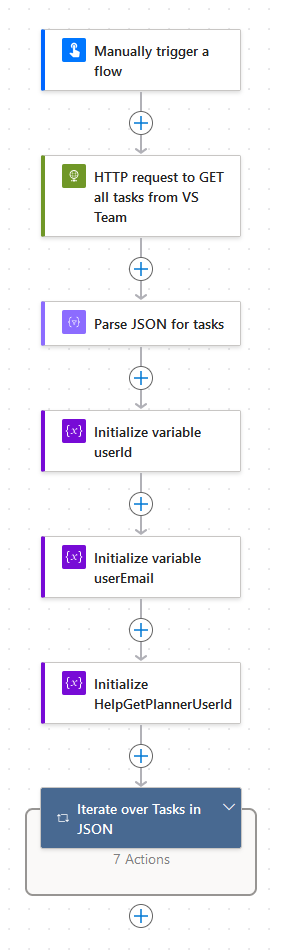
This page shows the process of the flow with all details.
Process Overview
|
Step |
Screenshot |
|---|---|
|
1-7 |
|
|
8-15 |
 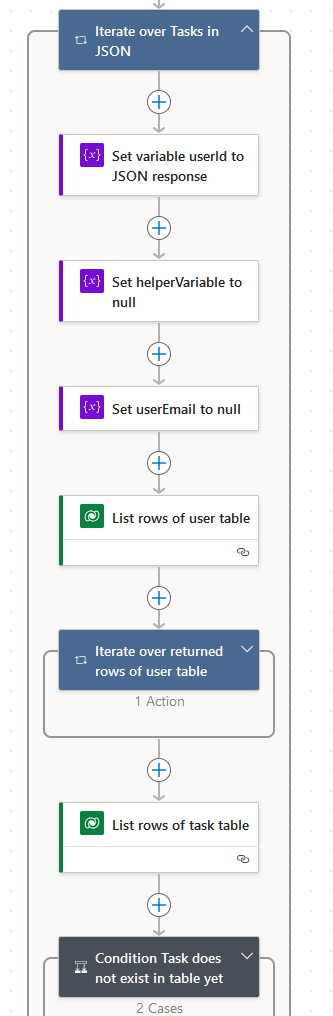
|
|
15-15.1.1.4 / 15.1.2.3 |
 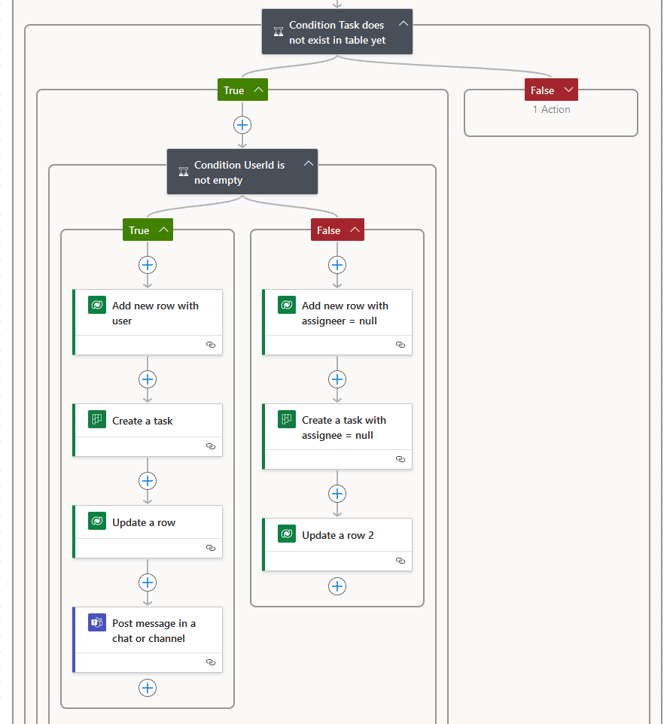
|
|
15-15.2.1.6.1.1 / 15.2.1.6.2.3
|
 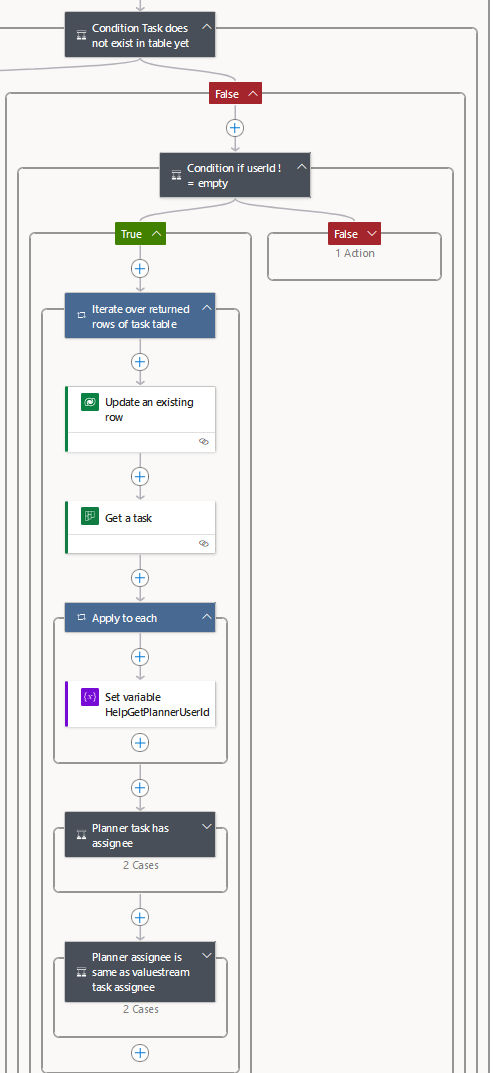
|
|
15-15.2.2.6 |
 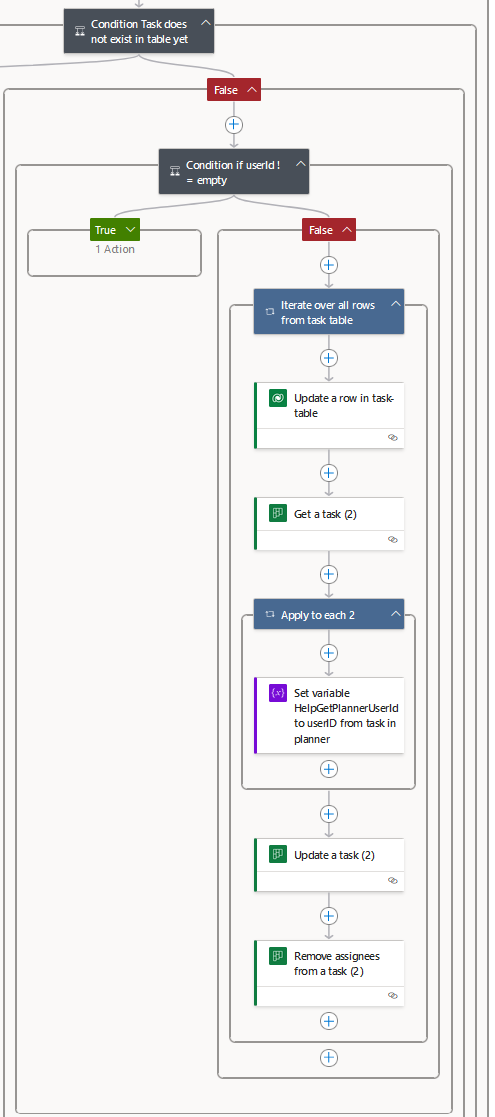
|
Step by step
|
Step |
Description |
Power Automate Function: Connector, Display-Name |
Variables, Parameters, Formula |
|---|---|---|---|
|
|
Flow is triggered. |
Trigger: No Connector, Manually Trigger a flow |
- |
|
|
Request data from Valuestreamer containing the tasks from a certain team. |
HTTP: HTTP, HTTP reqeust to GET all tasks from VS Team |
|
|
|
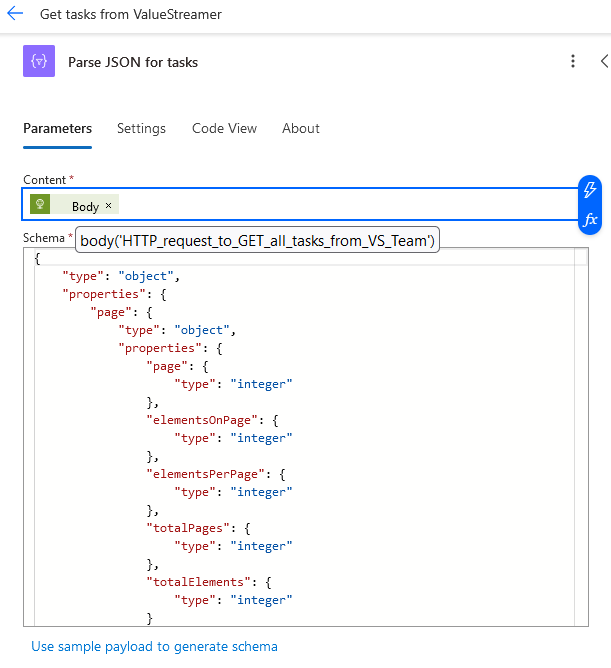
Parse the response of step 2 in a JSON-Object. |
Parse JSON: Data Operations, Parse JSON for tasks |
|
|
|
Create new variable called userID with datatype String and no value. |
Initialize Variable: Variables, Initialize Variable userID |
|
|
|
Create new variable called userEmail with datatype String and no value. |
Initialize Variable: Variables, Initialize Variable userEmail |
|
|
|
Create new variable called HelpGetPlannerUserId with datatype String and no value. |
Initialize Variable: Variables, HelpGetPlannerUserID |
|
|
|
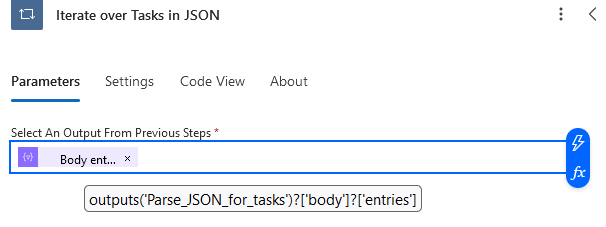
For-each-Loop: Iterate over all returned tasks from VS, using the JSON-Object from step 3. |
For each: Control, For each |
|
|
|
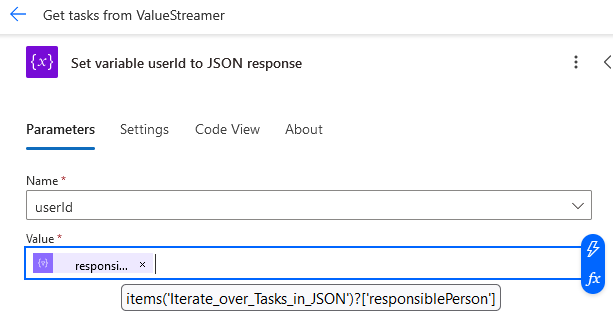
Set variable UserID to Assignee from current task. |
Set variable: Variables, Set variable userId to JSON response |
|
|
|
Set variable HelpGetPlannerUserId to null (to delete values from previous iterations) |
Set variable: Variables, Set helperVariable to null |
|
|
|
Set variable userEmail to null (to delete values from previous iterations) |
Set variable: Variables, Set userEmail to null |
|
|
|
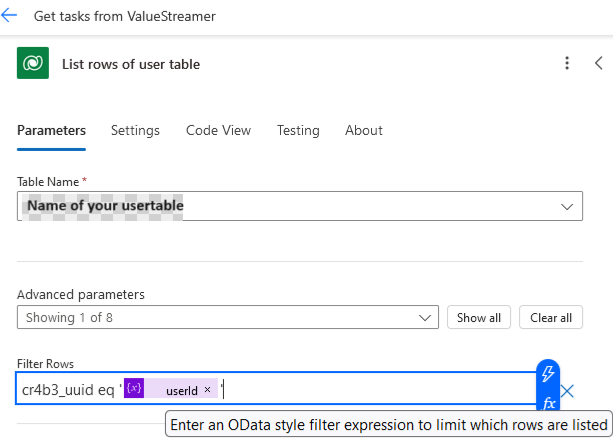
List rows from User-Table that belong to the current UserID (the variable was set in step 8) |
List rows List rows of user table |
|
|
|
For-each-Loop: Iterate over all returned rows from step 11. In step 11 only one row should be returned, because each user exists only once in the table. However PowerAutomate does not know this and therefore the For-Each-Loop is needed. |
For each: Control Iterate over returned rows of user table |
|
|
|
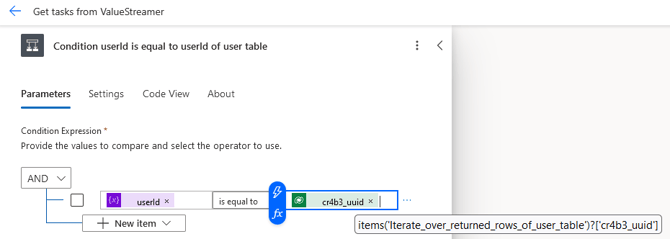
Compare current UserID from step 8 to userId from the returned rows in step 11. If equal, then task from Valuestreamer has an assignee and that assignee exists in user table (true). If true: Go to step 13.1.1 If false: Go to step 13.2.1 |
Condition: Control Condition userId is equal to userId of user table |
|
|
13.1.1 |
For-each-Loop: Iterate over all returned rows from step 11. |
For each: Control Iterate over returned rows of user table (2) |
|
|
13.1.2 |
Set variable userEmail to email of current iteration of step 13.1.1 |
Set variable: Variables, Set varaible userEmail |
|
|
13.2.1 |
Set variable userEmail to null. |
Set variable: Variables, Set variable userEmail to null |
|
|
14. |
List rows from Task-Table that belong to the current UserID (the variable UserID was set in step 8) |
List rows List rows of task table |
|
|
15. |
Compare the amount of rows returned in step 14 to 0. If the amount is 0, then the task does not exist in the task table (true). If the amount is 1 or higher, then the task does exist in the task table (false). If true: Go to step 15.1.1 If false: Go to step 15.2.1 |
For each: Control, Condition Task does not exist in table yet |
|
|
15.1.1 |
Compare the value of userID (set in step 8) to 0. If the value is not 0, then it is not empty and the task does have an assignee (true). If the value is 0, then it is empty and the task does not have an assignee (false). If true: Go to step 15.1.1.1 If false: Go to step 15.1.1.2 |
For each: Control, Condition UserId is not empty |
|
|
15.1.1.1 |
Current situation: Case 1: Task has to be created in task table. Therefore a new row is added, with the values of the current task of the iteration of step 7 |
Add a new row: Microsoft Dataverse, Add new row with user |
|
|
15.1.1.2 |
Task has to be created in Planner. |
Create a task: Planner, Create a task |
|
|
15.1.1.3 |
ID from newly created Planner task (step 15.1.1.2) has to be written into task table. |
Update a row: Microsoft Dataverse, Update a row |
|
|
15.1.1.4 |
Inform user via teams that a new task has been created in planner and assigned to him. End of iteration - jump back to step 7 |
Post message in a chat or channel: Microsoft Teams, Post message in a chat or channel |
|
|
15.1.2.1 |
Current Situation: Case 2: Task has to be created in task table. Therefore a new row is added, with the values of the current task of the iteration of step 7. The task has no assignee, therefore the user remains empty. |
Add a new row: Microsoft Dataverse, Add new row with assignee = null |
|
|
15.1.2.2 |
Task has to be created in Planner. |
Create a task: Planner, Create a task with assignee = null |
|
|
15.1.2.3 |
ID from newly created Planner task (step 15.1.2.2) has to be written into task table. End of iteration - jump back to step 7. |
Update a row: Microsoft Dataverse, Update a row 2 |
|
|
15.2.1 |
Compare the value of userID (set in step 8) to 0. If the value is not 0, then it is not empty and the task does have an assignee (true). If the value is 0, then it is empty and the task does not have an assignee (false). If true: Go to step 15.2.1.1 If false: Go to step 15.2.2.1 |
Condition: Control, Condition UserId is not empty |
|
|
15.2.1.1 |
Situation: Case 3: For-each-Loop: Iterate over returned rows in task-table from step 14.
|
For each: Control, Iterate over returned rows of task table |
|
|
15.2.1.2 |
Task has to be updated in task table. |
Update a row: Microsoft Dataverse, Updating an existing row |
|
|
15.2.1.3 |
Task table has to be synchronized with tasks in Planner. |
Get a task: Microsoft Planner, Get a task |
|
|
15.2.1.4 |
Set variable HelpGetPlannerUserId to userId of task in Planner (Loop will be created automatically, when value is set to userID) |
Set Variable: Variables, Set variable HelpGetPlannerUserId |
|
|
15.2.1.5 |
Compare the value of HelpGetPlannerUserId with 0. If greater than 0, HelpGetPlannerUserId is not empty (true). If not greater, HelpGetPlannerUserId is empty (false). If true: Go to step 15.2.1.5.1.1 If false: Go to step 15.2.1.5.2.1 |
Condition: Control, Planner task has assignee |
|
|
15.2.1.5.1.1 |
Get User profile from Office365-App |
Get user profile (V2): Get user profile (V2) |
|
|
15.2.1.5.1.2 |
Set variable HelpGetPlannerUserId to mail from returned value of step 15.2.1.5.1.1 |
Set variable: Set variable HelpGetPlannerUserId (2) |
|
|
15.2.1.5.2.1 |
Set variable HelpGetPlannerUserId to null. |
Set variable: Set variable HelpGetPlannerUserId (3) |
|
|
15.2.1.6 |
Compare the value of userEmail to HelpGetPlannerUserId. If equal, then both tasks have the same assignee (true). If not equal, then assignees are different and the assignee in planner has to be changed (false). If true: Go to step 15.2.1.6.1.1 If false: Go to step 15.2.1.6.2.1 |
Condition: Control, Planner assignee is same as valuestreamer task assignee |
|
|
15.2.1.6.1.1 |
Update task in planner with values from valuestreamer. End of iteration - jump back to step 7. |
Update a task: Update a task |
|
|
15.2.1.6.2.1 |
Update task in planner to add a new assignee. |
Update a task: Update a task and adding a new assignee |
|
|
15.2.1.6.2.2 |
Remove old assignees from task. This has to be done by an extra action. The action “Update task in planner” also has the option to remove an assignee -however this did not work while programming this flow (Jan2024) |
Remove old assignee from a task: Remove assingees from a task
|
|
|
15.2.1.6.2.3 |
Inform user via teams that a task has been assigned to him. End of iteration - jump back to step 7 |
Post message in a chat or channel: Microsoft Teams, Post message in a chat or channel |
|
|
15.2.2.1 |
Situation: Case 4: For-Each-Loop: Iterate over all returned tasks from step 14.
|
For each: Control, Iterate over all rows from task table |
|
|
15.2.2.2 |
Update a row in task table. |
Update a row: Update a row in task-table |
|
|
15.2.2.3 |
Get task from Planner.
|
Get a task: Get a task (2) |
|
|
15.2.2.4 |
Set variable HelpGetPlannerUserId to userID from task in planner (step 15.2.2.3). (Creates automatically a loop). |
Set Variable: Set variable HelpGetPlannerUserId to userID from task in planner |
|
|
15.2.2.5 |
Update task in planner. |
Update a task: Update a task (2)
|
|
|
15.2.2.6 |
Remove assignee from task in planner. End of iteration - jump back to step 7 |
Remove assignee from a task: Remove assignees from a task (2) |
|
Steps as screenshots
Following table shows some Screenshots which belong to a certain step from above.
|
Step |
Screenshot |
|---|---|
|
|
 -png.png?width=497&height=650&name=GetTaskFromVS_Step_2%20(1)-png.png)
|
|
3. |
|
|
7. |
|
|
8. |
|
|
11. |
|
|
13. |
|
|
|
|
|
|
|

-png.png?width=670&height=1683&name=Get%20Task%20from%20VS%20to%20Planner-drawio%20(1)-png.png)
Draw.IO-File with Diagram-data:
+++++++++++++++++++++++++++++++++++++++++++++++++++++++
Update ValueStreamer when Planner task is completed
These pages are used to document the “Update ValueStreamer task when Planner task is completed”-Flow.
This flow can be used to:
-
update a task in ValueStreamer, when the corresponding task in Planner is completed
-
creates a new T-card in ValueStreamer, if the task in ValueStreamer was T-Card and was completed in Planner
How does the flow work (High-Level-View):
A Task-Table matches the data about tasks from ValueStreamer and Planner.
When a task in Planner is set to done, then the flow is triggered.
The flow updates the task-table and sends several HTTP-Requests to update the task in ValueStreamer.
If the task has the property tcard=true, then an identical task is created in ValueStreamer.
More detailed information can be found on the sub-site: Technical process (detailed) of flow "Update ValueStreamer task when Planner task is completed"

-png.png?width=670&height=368&name=Update%20Valuestreamer%20task%20when%20Planner%20task%20is%20completed-drawio%20(1)-png.png)
Technical process (detailed) of flow "Update ValueStreamer task when Planner task is completed"
This page shows the process of the flow with all details.
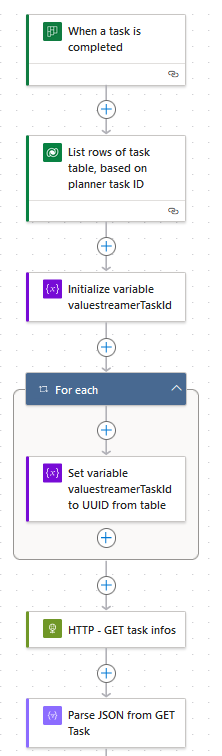
Process Overview
|
Step |
Screenshot |
|---|---|
|
1-7 |

|
|
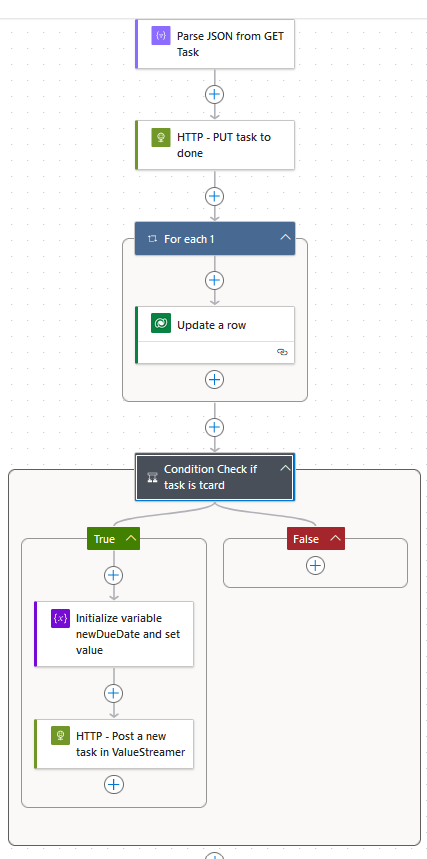
7-11.1.2 |

|
Step by step
|
Step |
Description |
Power Automate Function: Connector, Display-Name |
Variables, Parameters, Formula |
|---|
|
Step |
Description |
Power Automate Function: Connector, Display-Name |
Variables, Parameters, Formula |
|---|---|---|---|
|
|
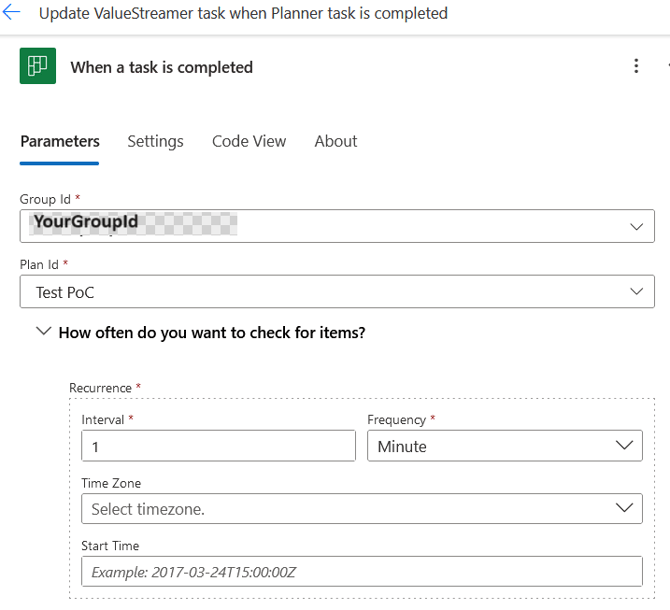
When a task is completed in planner, then trigger this flow. |
Trigger: When a task is completed |
Key Value |
|
2. |
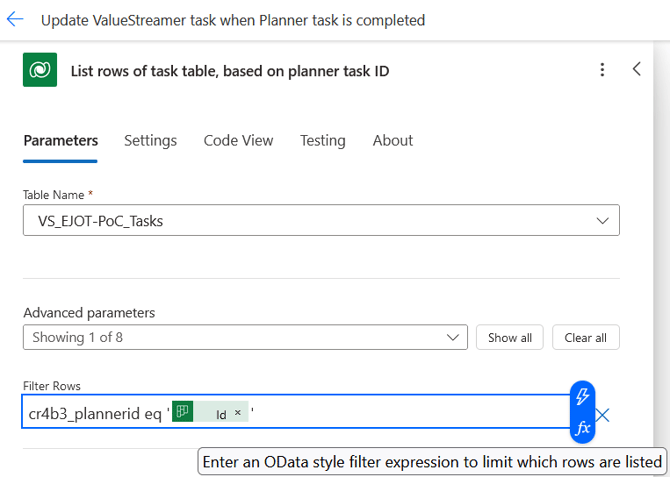
Get the completed task in planner from the task table. |
List rows: List rows of task table, based on planner task ID |
Key Value Table Name: YourTaskTable |
|
3. |
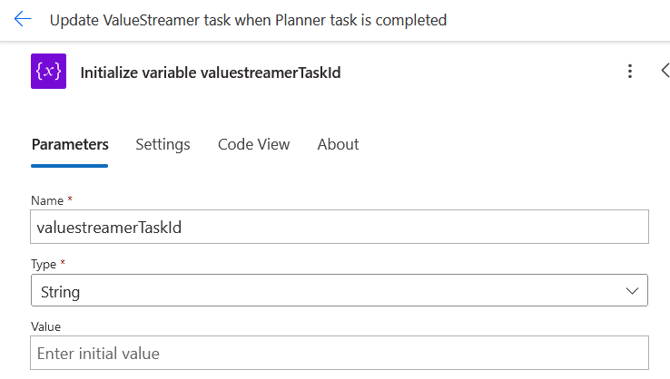
Create a new variable called valuestreamerTaskId of type String and with no value. |
Initialize Variable: Initialize Variable valuestreamerTaskId |
Key Value Name: valuestreamerTaskId Type: String |
|
4. |
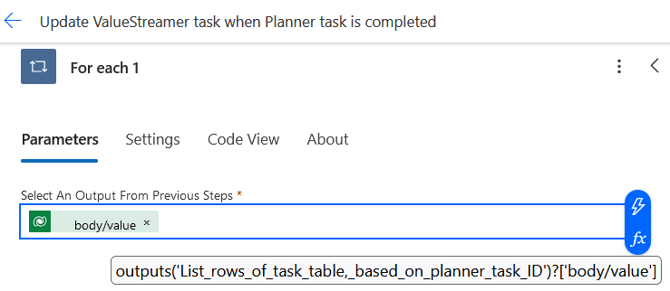
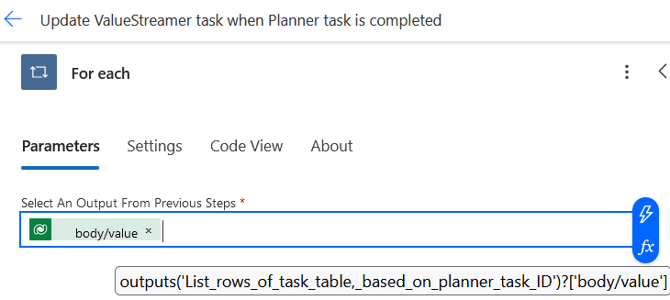
For-Each-Loop to iterate over all returned rows from step 2. Power Automate does not know that there always will be only one returned row in this usecase. |
For each: For each |
|
|
5. |
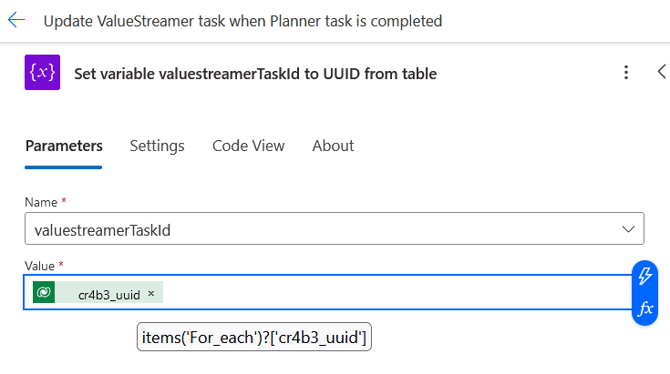
Set variable valuestreamerTaskID to UUID from task table of the current loop. |
Set variable: Set variable valuestreamerTaskId to UUID from table |
Key Value Name: valuestramerTaskID Value: |
|
6. |
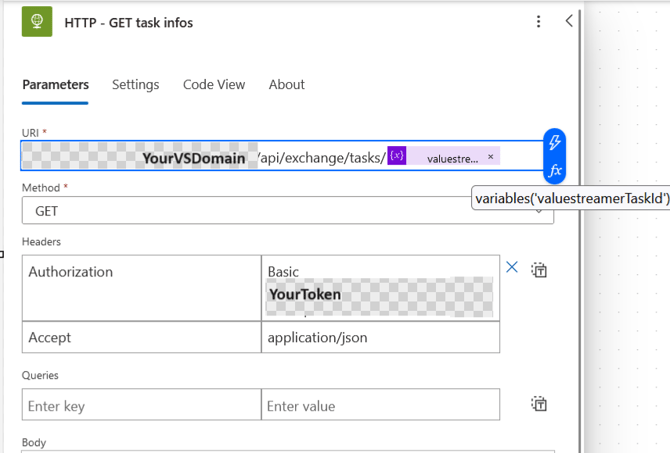
Send HTTP-Request (GET) to Valuestreamer, filtered by the value of valuestreamerTaskId, to get the data of the task in the ValueStreamer. |
HTTP: HTTP - GET task infos |
Key Value Uri: YourDomain/api/exchange/tasks/variables('valuestreamerTaskID') Headers: Queries: |
|
7. |
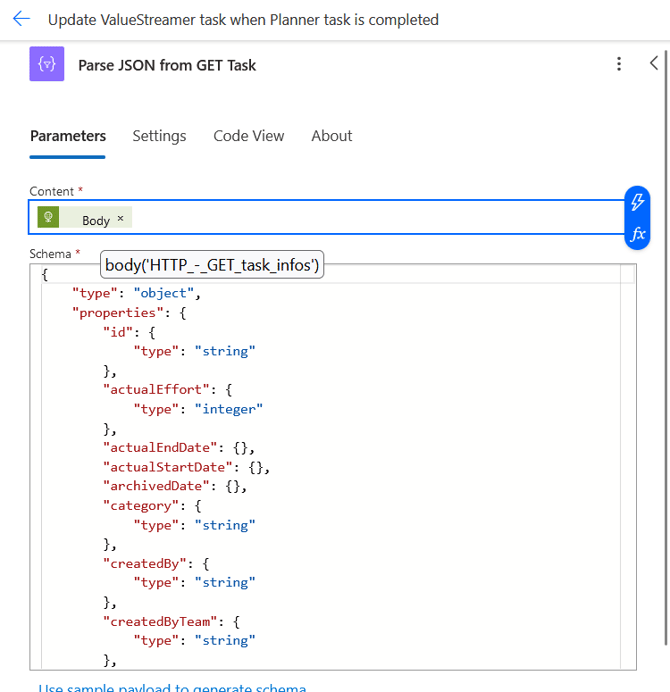
Parse the response of step 6 in a JSON-Object. |
Parse JSON: Parse JSON from GET Task |
Content: { |
|
8. |
Send HTTP-Request (Put) to ValueStreamer to set the task in ValueStreamer to done. |
HTTP: HTTP - PUT task to done |
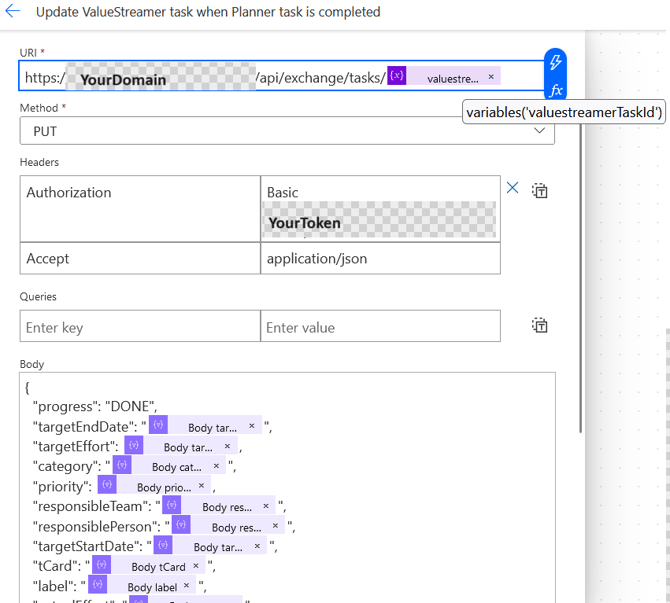
Key Value Uri: /api/exchange/tasks/variables('valuestreamerTaskID') Headers Body: {
"progress": "DONE",
"targetEndDate": "@{body('Parse_JSON_from_GET_Task')?['targetEndDate']}",
"targetEffort": "@body('Parse_JSON_from_GET_Task')?['targetEffort']",
"category": "@{body('Parse_JSON_from_GET_Task')?['category']}",
"priority": "@body('Parse_JSON_from_GET_Task')?['priority']",
"responsibleTeam": "@{body('Parse_JSON_from_GET_Task')?['responsibleTeam']}",
"responsiblePerson": "@{body('Parse_JSON_from_GET_Task')?['responsiblePerson']}",
"targetStartDate": "@{body('Parse_JSON_from_GET_Task')?['targetStartDate']}",
"tCard": "@{body('Parse_JSON_from_GET_Task')?['tCard']}",
"label": "@{body('Parse_JSON_from_GET_Task')?['label']}",
"actualEffort": "@{body('Parse_JSON_from_GET_Task')?['actualEffort']}",
"status": "@body('Parse_JSON_from_GET_Task')?['status']",
"title": "@{body('Parse_JSON_from_GET_Task')?['title']}"
} |
|
9. |
For-Each-Loop to iterate over all returned rows from step 2. Power Automate does not know that there always will be only one returned row in this usecase. |
For each: For each |
|
|
10. |
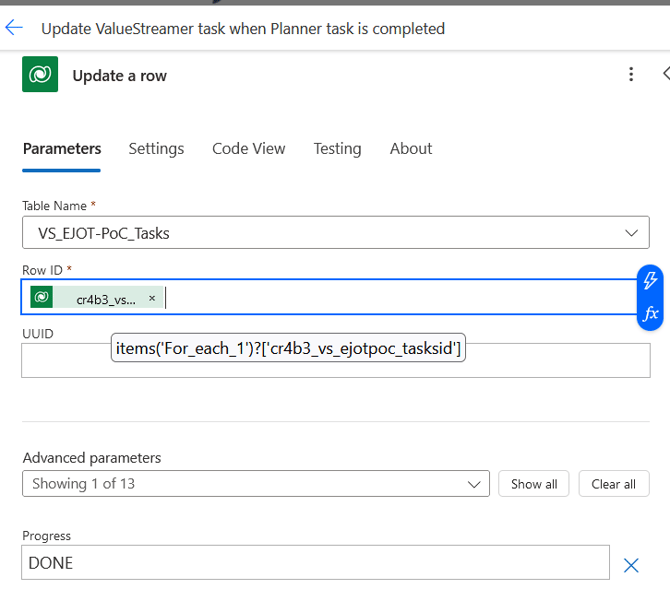
Update rows in task table by setting progress to done. |
Update a row: Update a row |
Key Value Table Name: YourTaskTable Row_ID:
Progress: DONE |
|
11. |
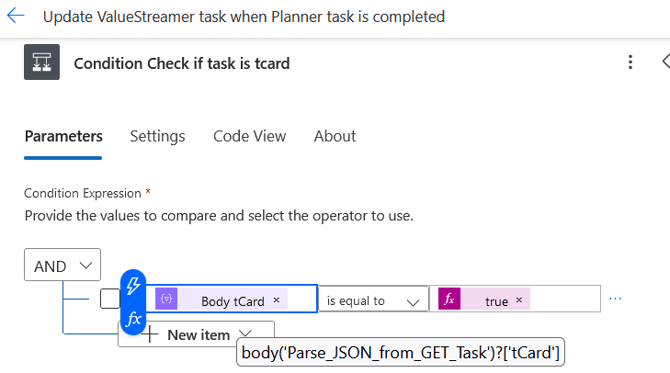
Check if the task is a tcard in the ValueStreamer. If the card is a tcard, then the condition is true. Otherwise the condition is false. If true: Go to step 11.1.1 If false: There is nothing to do - end flow. |
Condition: Control, Condition Check if task is tcard |
body('Parse_JSON_fromGet_Task')?['tCard'] is equal to true |
|
11.1.1 |
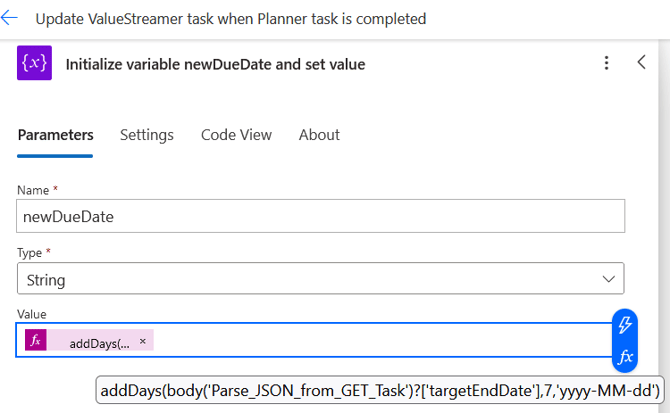
Initialize new variable with Name newDueDate of Datatype String and a value. This variable will be used to create a new task in valuestreamer (Step 11.1.2). Usecase 1: Usecase 2: |
Initialize Variable: Initialize variable newDueDate and set value |
Key Value Name: newDueDate Type: String Value: (Usecase 1) getFutureTime(7, ‘Day’, ‘yyyy-MM-dd’) Value: (Usecase 2) |
|
11.1.2 |
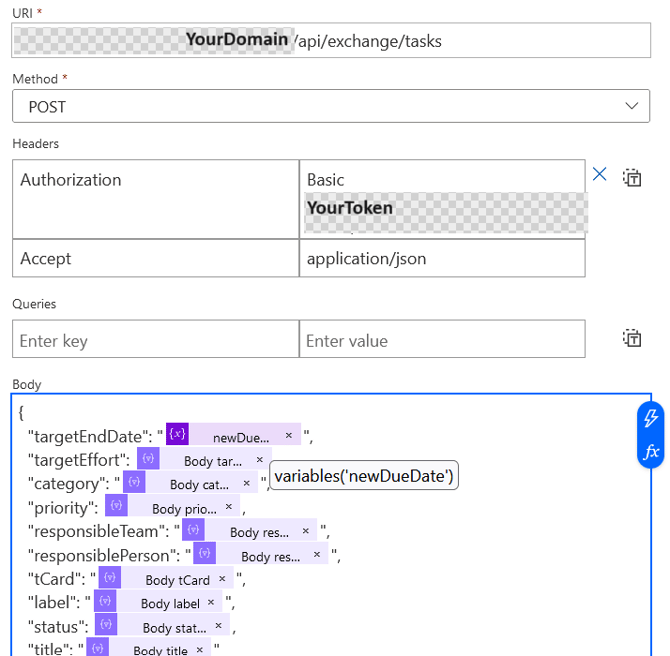
The completed task is a tcard. Therefore an identical task has to be created in the ValueStreamer. Send a HTTP-Request (Post) to ValueStreamer to create an identical task with a value for “targetEndDate” using the variable newDueDate from step 11.1.1. End of flow. |
HTTP: HTTP - Post a new task in ValueStreamer |
Key Value Uri: /api/exchange/tasks Headers
{
"targetEndDate": "@{variables('newDueDate')}",
"targetEffort": @{body('Parse_JSON_from_GET_Task')?['targetEffort']},
"category": "@{body('Parse_JSON_from_GET_Task')?['category']}",
"priority": @{body('Parse_JSON_from_GET_Task')?['priority']},
"responsibleTeam": "@{body('Parse_JSON_from_GET_Task')?['responsibleTeam']}",
"responsiblePerson": "@{body('Parse_JSON_from_GET_Task')?['responsiblePerson']}",
"tCard": "@{body('Parse_JSON_from_GET_Task')?['tCard']}",
"label": "@{body('Parse_JSON_from_GET_Task')?['label']}",
"status": @{body('Parse_JSON_from_GET_Task')?['status']},
"title": "@{body('Parse_JSON_from_GET_Task')?['title']}"
}
|
Steps as screenshots
Following table shows some Screenshots which belong to a certain step from above.
|
Step |
Screenshot |
|---|---|
|
1. |

|
|
2. |
  |
|
3. |

|
|
4. |
  |
|
5 |

|
|
6. |

|
|
7. |
  |
|
8. |

|
|
9. |

|
|
10. |

|
|
11. |

|
|
11.1.1 (Usecase 2) |

|
|
11.1.2 |
  |